Communications
Sending Emails
Forge provides four email sending modes to cover every scenario — from an immediate one-time blast to a fully automated communication sequence. All sends are logged against the event's attendee records in Salesforce.
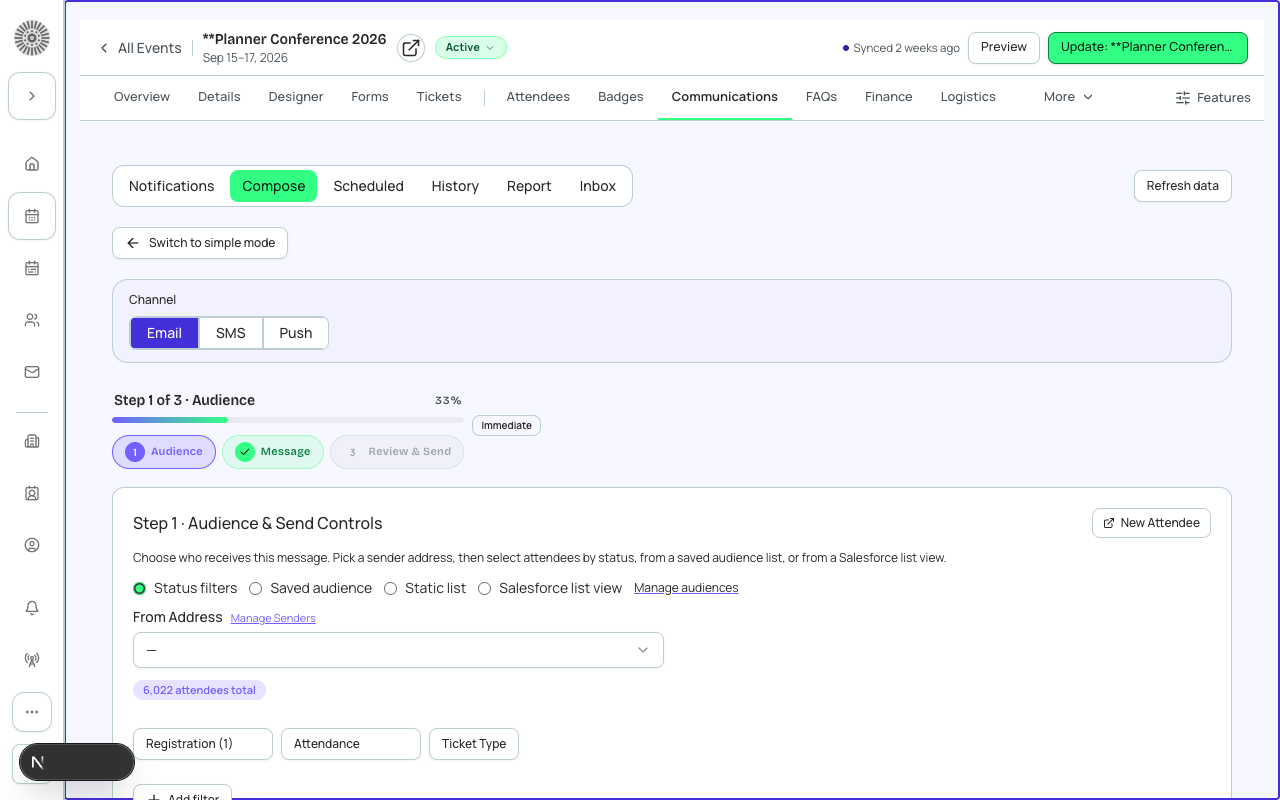
Manual Send
A manual send delivers a one-time email to a selected audience right now or at a chosen time. Use it for ad-hoc event updates, last-minute schedule changes, or post-event thank-you messages.
- Open the event and go to the Communications tab.
- Click New Send and choose Manual Send.
- Select the email template to use.
- Choose the audience — All Registered, a specific ticket type, a custom segment, or a manual list.
- Review the estimated recipient count.
- Click Send Now to deliver immediately, or choose a delivery time to schedule it.
Scheduled Send
A scheduled send works exactly like a manual send but is queued for delivery at a future date and time. The recipient list is calculated at the scheduled delivery time — not at the moment you set it up — so late registrants added after you schedule the send will receive it if they match the audience criteria.
Recipient list is live at send time
Scheduled sends evaluate the audience at delivery time, not at the time of scheduling. If you add 200 new registrants between now and your scheduled send time and they match the audience, they will receive the email.
Recurring Send
Recurring sends run on a repeating schedule — daily, weekly, or monthly — and deliver to whoever matches the audience criteria at each run time. Use recurring sends for weekly event update newsletters or recurring reminders.
| Setting | What it controls |
|---|---|
| Frequency | How often the send repeats: Daily, Weekly (choose day of week), or Monthly (choose day of month) |
| Start Date | The first date the recurring send runs |
| End Date | Optional — the last date the recurring send runs; leave blank to run indefinitely |
| Skip Duplicates | When enabled, contacts who already received this email in the current campaign cycle are excluded |
| Max Sends Per Contact | Limits how many times a single contact can receive this email across all recurrences |
Registration-Triggered Sends
Registration-triggered emails fire automatically when specific registration events occur. These are configured per event in Event Info > Communications and use the event's assigned transactional email templates.
| Trigger event | Email type | Configurable delay |
|---|---|---|
| Registration confirmed | Confirmation email | Immediate — no delay option |
| Added to waitlist | Waitlist email | Immediate — no delay option |
| Promoted from waitlist | Promotion email | Immediate — no delay option |
| Registration cancelled | Cancellation email | Immediate — no delay option |
| N days before event | Reminder email | Set the number of days in Event Communications settings |
| Post-event (N hours after end) | Post-event email | Set the delay hours in Event Communications settings |
Salesforce Triggered Sends alternative
If your organization uses Salesforce Marketing Cloud, you can route any of these registration-triggered emails through SFMC Triggered Send Definitions instead of Forge's native sender. Configure this in Global Options > Email Provider > SFMC Triggered Sends. When enabled, Forge fires the SFMC API instead of sending the email itself — SFMC handles template rendering, personalization, and deliverability tracking.
Audience Selection
Every send lets you target a specific audience. The following audience types are available:
| Audience type | Who receives the email |
|---|---|
| All Registered | Every attendee with a Registered status on this event |
| All Waitlisted | Every attendee with a Waitlisted status on this event |
| By Ticket Type | Attendees who purchased a specific ticket type (e.g. 'VIP only') |
| By Session | Attendees enrolled in a specific session |
| Custom Segment | A dynamic audience segment defined in the Audiences module (filter by any Salesforce field) |
| Uploaded List | A CSV of email addresses uploaded for this send only |
Send Limits and Rate Throttling
Forge respects the sending rate limits of your configured email provider. Large sends (1,000+ recipients) are automatically batched and spread over a delivery window to protect your sender reputation. For very large sends (10,000+), consider scheduling during off-peak hours to avoid provider-side queuing delays.
Cancelling a Scheduled Send
Scheduled and recurring sends that have not yet run can be cancelled from the event Communications tab by clicking the three-dot menu on the scheduled send and selecting Cancel. Once a send has begun delivery, in-progress batches cannot be recalled.