Salesforce
For Salesforce Admins
This page is written specifically for the Salesforce admin who owns the org that Forge is connected to. It covers what Forge expects to find in your org, what you need to configure, and how to maintain the integration over time.
Required packages
Forge requires the Blackthorn Events managed package (conference360__ namespace) at minimum. The following packages unlock additional Forge surfaces.
| Package | Namespace | What it unlocks in Forge |
|---|---|---|
| Blackthorn Events | conference360__ | Events, Sessions, Tickets, Attendees, Speakers, Sponsors, Forms — the core Forge workspace |
| Blackthorn Base | bt_base__ | Visibility Rules, shared Form infrastructure, Branding Settings |
| Blackthorn Payments | bt_stripe__ | Transactions, Discount Codes, Fees, Payment Gateways, Invoices (Sales Documents) |
| Blackthorn Fundraising (beta) | bt_fundraising__ | Donations, Recurring Gifts, Auctions, Auction Items, Bids — all beta-flagged |
Permission sets
Forge users must have a Blackthorn permission set assigned in Salesforce. The right set depends on what the user should be able to do.
| Permission set | Who it is for |
|---|---|
| Blackthorn_Events_Admin | Full Forge access — create, edit, and delete all events, sessions, tickets, attendees, speakers, and sponsors |
| Blackthorn_Event_Organizer | Create and manage events; limited admin settings access |
| Blackthorn_Events_Lite_User | Manage attendees and sessions on existing events; read-only on event settings |
| Blackthorn_Events_ReadOnly | View-only access across all events surfaces |
| Blackthorn_Events_Community_Platform_User | Used by Experience Cloud users who register via public event pages |
| Blackthorn_Events_Community_Guest_User | Guest user access for unauthenticated public registration pages |
New objects and fields
Every new custom object and custom field shipped by Blackthorn is granted in the corresponding admin permission set. If a field is missing from a user's view in Forge, check that the admin permission set in the package version you have installed includes that field's objectPermissions and fieldPermissions entries.
Field-Level Security requirements
Forge honours FLS on every read and write. If a field is not readable by the signed-in user's profile or permission sets, it will not appear in Forge. If a field is not writable, Forge will surface a Salesforce error when the user tries to save.
- Make sure the connected user's profile or permission set has Read access on all conference360__, bt_base__, bt_stripe__, and bt_fundraising__ fields you expect to see in Forge.
- For fields that Forge writes (name, email, registration status, check-in timestamp), ensure Edit access is also granted.
- Use the Forge Admin diagnostics page to surface FLS gaps — it lists which mapped fields are readable and writable for the connected user.
Relationship conventions — Lookup only
All relationships across Blackthorn packages are Lookup relationships, never Master-Detail. This is a non-negotiable convention and affects how deletions are handled.
| Delete constraint | When it is used |
|---|---|
| Cascade | The child record is meaningless without its parent (e.g. a junction record between two objects where both lookups are required) |
| SetNull | A soft reference that must survive parent deletion to preserve history and reporting |
| Restrict | Deletion of the parent must be blocked while children exist (e.g. an Event with Attendees) |
No roll-up summary fields
Because all relationships are Lookup (not Master-Detail), roll-up summary fields are not used. Counts and sums (e.g. conference360__Attendee_Limit__c, conference360__Sold_Quantity__c) are maintained by record-triggered Flows and scheduled reconciliation Flows. Do not change the relationship type of any Blackthorn object.
Page layouts and Lightning record pages
Every Blackthorn managed object ships with a classic page layout and a Lightning record page (FlexiPage). Fields are grouped into an 'Information' section using a two-column layout. Related lists for child Lookup relationships are included.
- New custom objects ship with a layout file at force-app/main/default/layouts/<Object>-<Name> Layout.layout-meta.xml and a FlexiPage at force-app/main/default/flexipages/<Object>_Record_Page.flexipage-meta.xml.
- Every new field is added to the relevant page layout so admins can see it in Salesforce. If you install a new package version and a field does not appear in your layout, re-run the layout assignment from Setup.
- Fields use behaviour = 'Required', 'Edit', or 'Readonly' as appropriate. Read-only formula fields are set to Readonly in the layout.
Field description and help text requirements
Every custom field and every custom object in the Blackthorn packages carries both a description element and an inlineHelpText element in its metadata. The description appears in the object's field list in Setup. The inlineHelpText appears as a hover tooltip next to the field in page layouts.
Why this matters for admins
When you build Flows, Apex, or additional page layouts that reference Blackthorn fields, you can rely on the inline help text to understand what each field does without having to read the documentation. If a field is missing help text in a package version you have installed, file a support request.
Validation rules, triggers, and Flows
Forge writes through the standard Salesforce REST and Composite APIs as the signed-in user. This means every Apex trigger, Flow, Process Builder rule, and validation rule in your org runs automatically on Forge-initiated writes — exactly as it would for a Salesforce UI save. Forge does not bypass any of these mechanisms.
- Validation rule failures surface inline in Forge next to the offending field, with the error message text from the rule.
- Apex trigger exceptions propagate to the Forge UI as error banners.
- Flows that execute on record save run automatically — Forge does not need to know about them in advance.
- If a Flow or trigger runs as a different user context (e.g. a system-mode Flow), it may have different field access than the Forge user. This can cause unexpected errors or silent skips. Test Flows in the context of the permission sets your Forge users hold.
Org locale, currency, and timezone
Forge uses its own locale cookie (bt-locale) for UI strings and number formatting. Org-level currency, locale, and timezone defaults are not automatically applied to the Forge UI — this is a known gap, not a design choice. Event dates are stored and displayed in the event's configured timezone.
Multi-currency orgs
If your org has multi-currency enabled, Forge reads the CurrencyIsoCode field where present and passes it through to Salesforce on writes. However, Forge's finance surfaces display amounts in the currency stored on the Salesforce record — conversion is not performed in Forge. Verify your gateway and Event Item currency settings are consistent before going live.
Reconnecting the org
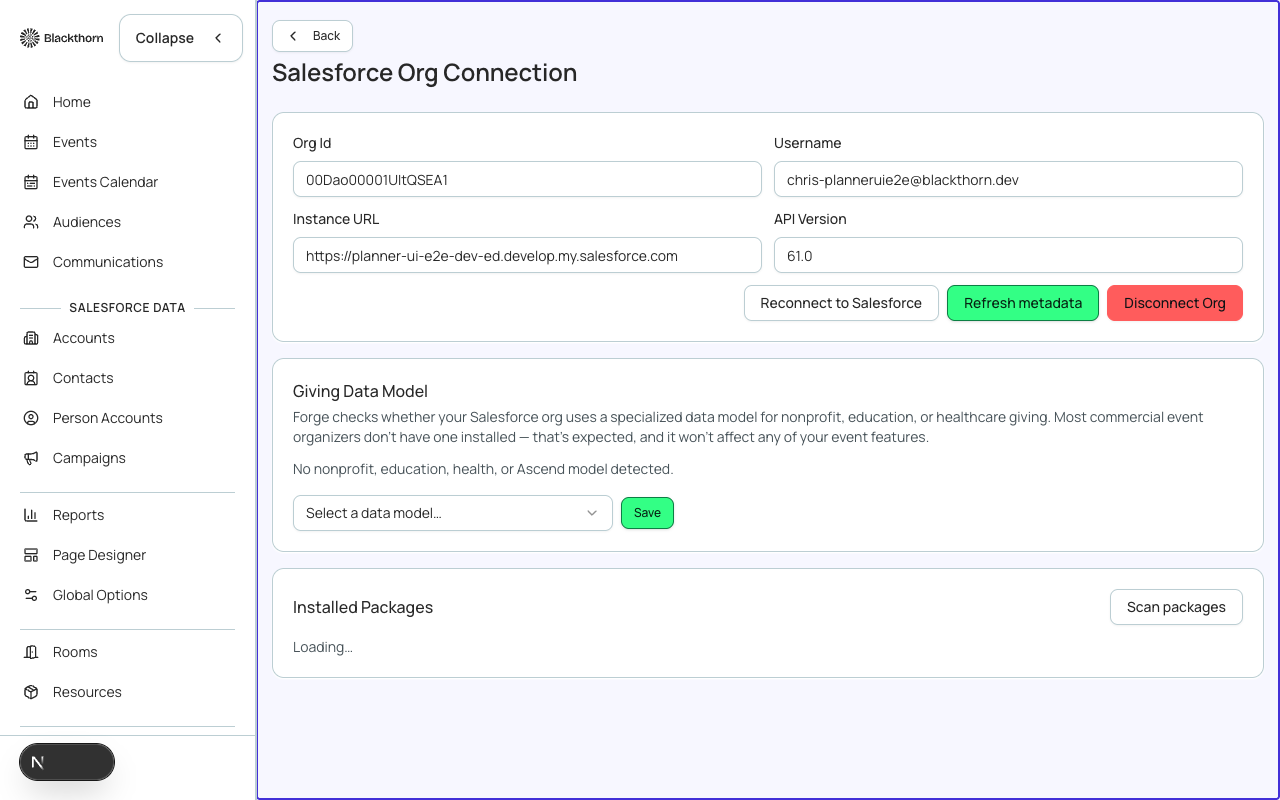
Object mappings are populated at OAuth time. If you install a new Blackthorn package after the initial connection, or if an object mapping shows as missing in Forge, reconnect the org from the Admin page. Reconnecting re-runs the describe and rewrites the object_mappings row without affecting any other tenant data.
- Navigate to the Forge Admin page.
- Find the Salesforce connection panel and click 'Reconnect org'.
- Complete the Salesforce OAuth flow (you will be redirected to Salesforce and back).
- Forge re-reads your installed objects and updates all mappings.
- Verify the surface that was showing 'object not mapped' now loads correctly.
Security: integration user recommendations
- Use a named integration user (a dedicated Salesforce user) for the Forge OAuth connection rather than a personal user account. This prevents the connection from breaking when a human user is deactivated.
- The integration user must have the Blackthorn_Events_Admin permission set and, depending on your usage, the corresponding Payments and Fundraising admin permission sets.
- Never store access tokens or refresh tokens outside Forge's encrypted Postgres oauth_tokens table. If tokens are compromised, revoke them from Setup > Connected Apps.
- Forge supports IP allowlisting at the Salesforce Connected App level. Configure the allowlist to Forge's production IP ranges (available from Blackthorn support) for additional security.
Troubleshooting quick reference
| Symptom | Likely cause | Fix |
|---|---|---|
| A Forge surface shows 'object not mapped' | Package installed after initial OAuth, or describe failed | Reconnect org from Admin page |
| Fields are blank where data should appear | FLS — field not readable for connected user | Add field Read access to the user's permission set |
| A save fails with a Salesforce error | Validation rule or trigger exception | Check Setup > Debug Log or the Forge error message for the rule name |
| Data looks stale after a Salesforce edit | Redis cache (up to 2 hours) | Use the refresh control on the surface or wait for cache expiry |
| Sign-in loops back to login | Refresh token revoked or expired | Re-authenticate from the Forge sign-in page; check Connected App in Setup |
| Forge shows a field the user should not see | FLS configured on profile but not on Forge's connected user | Verify FLS on the connected user's permission sets, not only profiles |
| Export includes unexpected data | Report filter misconfigured in Forge segment | Review the segment SOQL filter in the Audiences area and re-materialise |
Salesforce deep links from Forge
Every Salesforce-backed surface in Forge displays a record icon that opens the underlying record directly in your Salesforce org. Use this to jump into Setup, run a Debug Log, or verify field values without leaving your Forge workflow.