Getting Started
The Shell
The Forge shell is the persistent frame that wraps every page — sidebar navigation on the left, topbar across the top, and the main content area in the center. Understanding the shell helps you navigate quickly no matter where you are in the app.
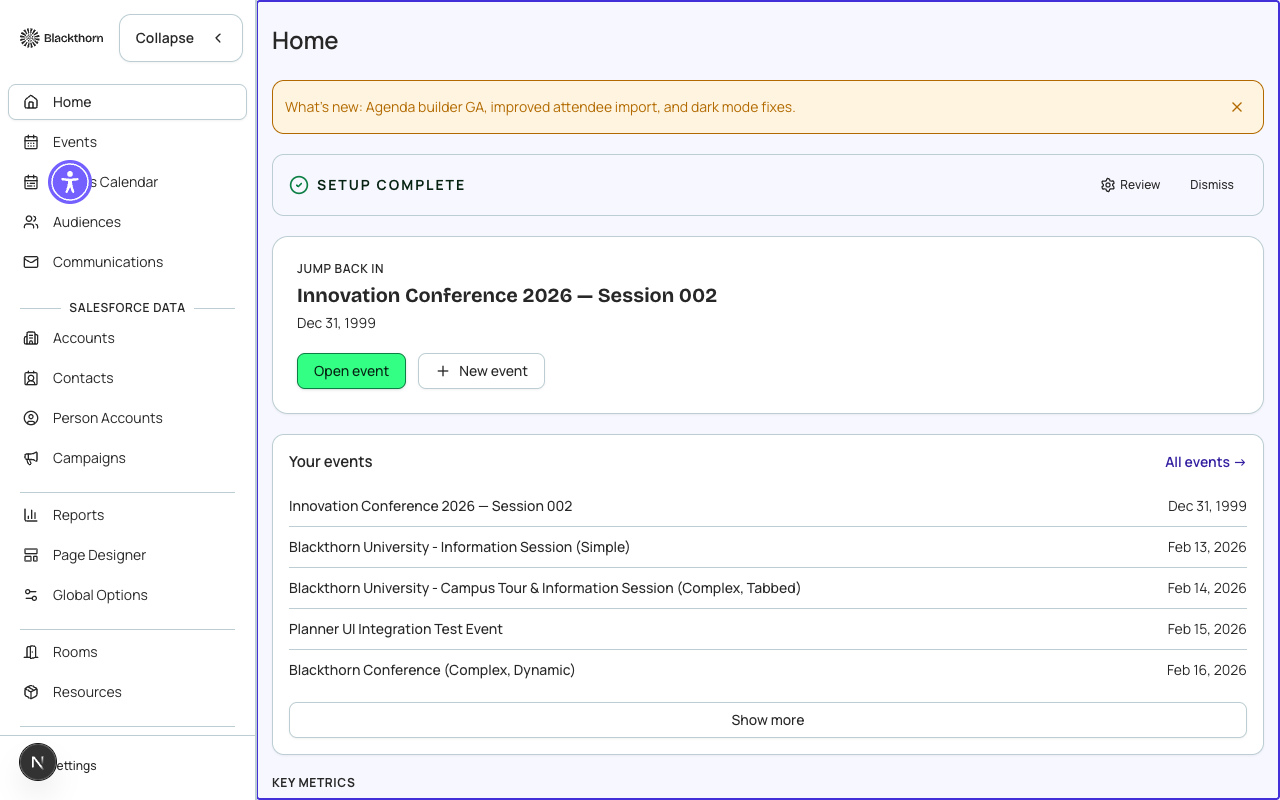
Left sidebar
The sidebar is organized into three zones:
- Primary navigation — Home, Events, Audiences, Communications. These are the most-used sections and appear at the top.
- Secondary navigation — Speakers, Sponsors, Attendees, Forms, Records, Lists, Logs, Rooms & Resources (beta), Auctions (beta), Donations (beta), Badges (beta). These appear below the primary section.
- Account navigation — Guide (this documentation), Roadmap, Profile, Admin. These appear at the bottom of the sidebar.
On desktop, the sidebar can be collapsed to an icon rail by clicking the collapse button at the bottom. On mobile, the sidebar slides in as a drawer when you tap the menu icon in the topbar.
Topbar
The topbar contains:
- Global search (⌘K on Mac, Ctrl+K on Windows/Linux) — search across events, attendees, speakers, and sponsors.
- Theme switcher — toggle between light mode and dark mode.
- Locale switcher — change the display language (13 locales supported).
- Notification bell — in-app alerts for background jobs, imports, and system messages.
- User avatar — quick access to your profile and logout.
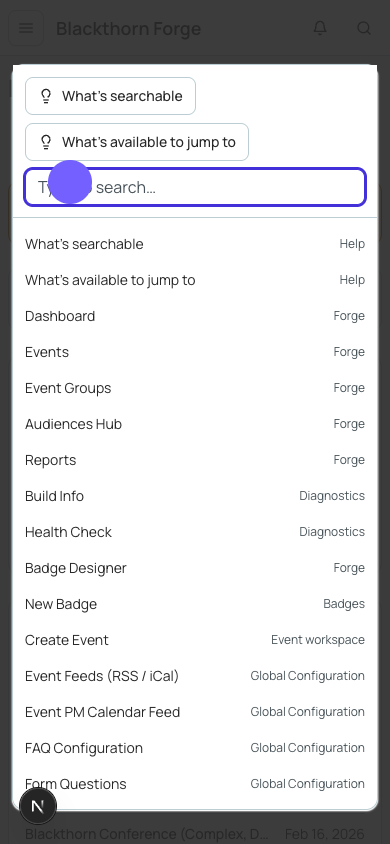
Global search (⌘K)
Press ⌘K (Mac) or Ctrl+K (Windows/Linux) from anywhere in Forge to open the command palette. Type the name of an event, attendee, speaker, or sponsor. Results appear instantly and are scoped to your Salesforce org. Press Enter or click a result to navigate directly to that record.
Breadcrumbs and back navigation
When you are inside an event workspace, a breadcrumb trail appears below the topbar: Events > Event Name > Tab Name. Click any breadcrumb segment to navigate up. The browser back button also works as expected.
Theme and locale switchers
Forge supports light and dark themes. Your preference is saved to your browser. The locale switcher changes the display language for the entire app — this preference is also saved locally and does not affect other users' sessions.
Right-to-left support
Hebrew (he) and Arabic (ar) locales automatically switch the layout to right-to-left. All sidebar navigation, tables, and form controls adapt to the RTL direction.