Portals
Volunteer Check-In
The Volunteer Check-In app is a standalone, mobile-optimized web application that lets your volunteers and staff check attendees into events and individual sessions directly from a smartphone or tablet — no Forge login required after initial setup. It supports QR code scanning, walk-in registration, and real-time leaderboards.
Accessing the app
The Check-In app lives at a dedicated URL separate from the main Forge interface. Event managers share the URL (and an optional access code) with volunteers before the event. Volunteers open the URL in any modern mobile browser — no app store download required.
Volunteer login and approval
- The volunteer opens the Check-In URL on their device.
- They enter their name and email address to create a check-in session.
- If the event requires volunteer approval, the event manager receives an approval request in Forge. The volunteer sees a "Waiting for approval" screen until approved.
- Once approved (or if approval is not required), the volunteer is dropped into the Event Hub.
Event Hub
The Event Hub is the volunteer's home screen. It shows the event name, date, and key stats: total expected attendees, checked-in count, and remaining capacity. From here the volunteer can navigate to all check-in actions.
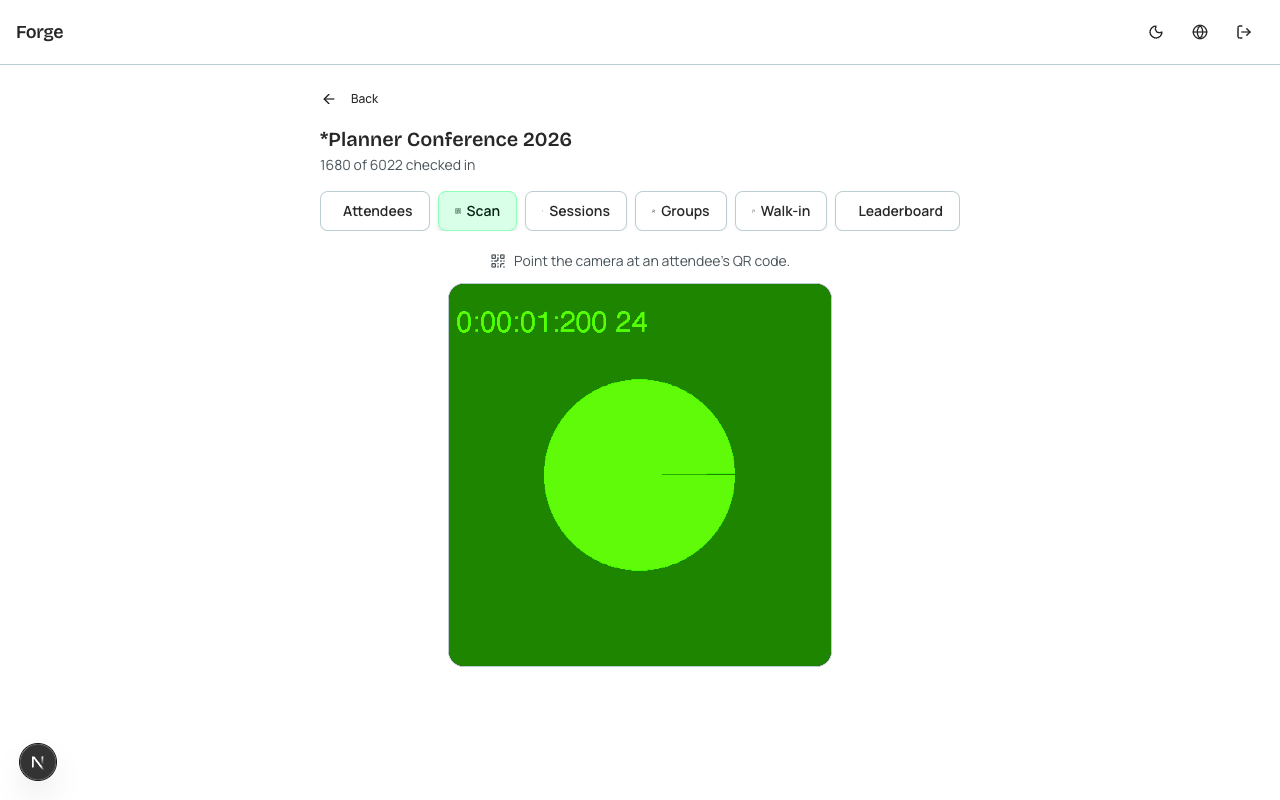
Scanning a QR code
- Tap Scan QR on the Event Hub.
- The device camera activates. Frame the attendee's QR code (found in their confirmation email).
- Forge reads the QR code, looks up the attendee, and shows a green confirmation card (name, ticket type, any session assignments) if the attendee is registered.
- If the code is invalid, already checked in, or belongs to a different event, the screen shows a red error message with an explanation.
- Tap the confirmation or error card to return to the scan screen.
Manual attendee lookup
If an attendee cannot produce a QR code (or the camera is unavailable), tap Search Attendees to search by name or email. The search returns a match list; tap an attendee to see their details and check them in manually.
PII on device
Attendee names and emails are displayed on the check-in device during lookup. Ensure volunteers are briefed on data handling — they should not photograph or screenshot these screens. The Check-In app does not persist any personal data on the device; all lookups are real-time queries to Salesforce.
Session check-in
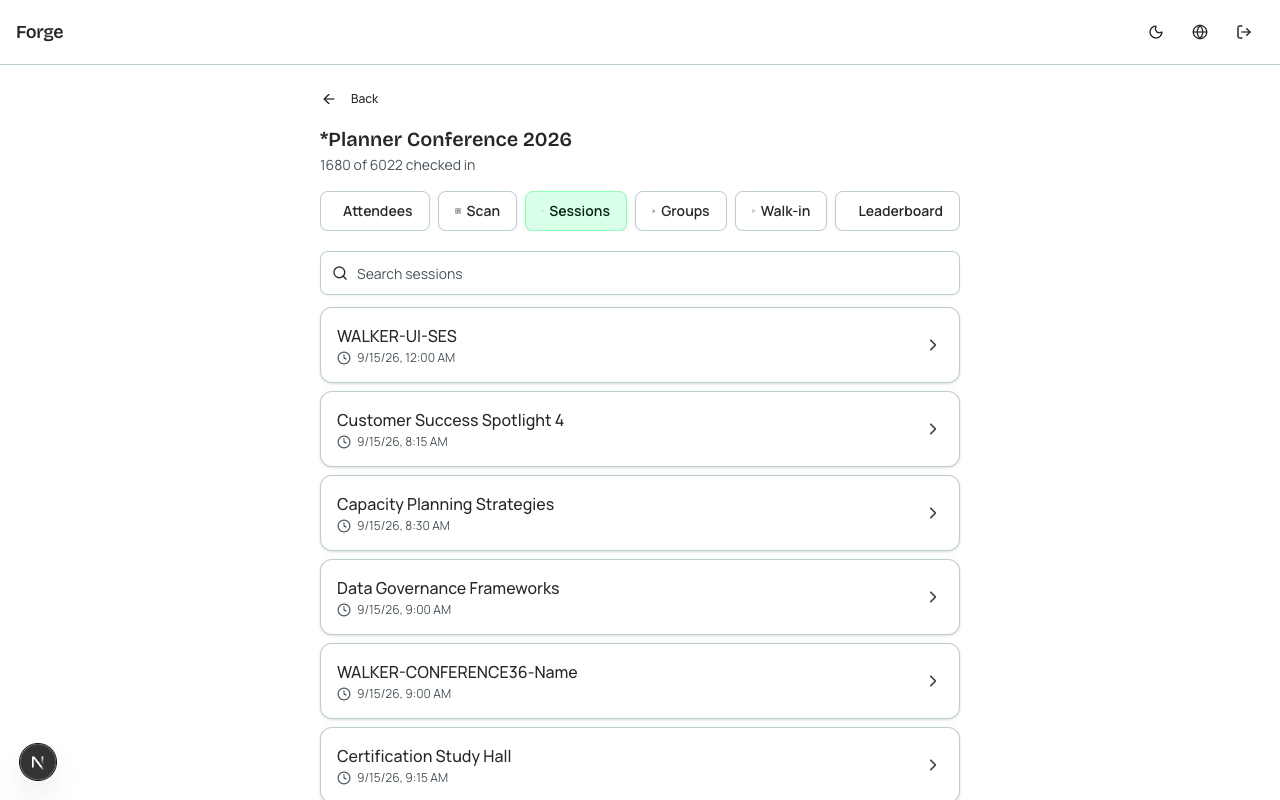
For multi-session events, the volunteer can switch to Session Check-In mode from the Event Hub. They select the session they are staffing, then the scan and search flows work identically to event-level check-in but scope the result to that session. An attendee enrolled in the session is marked as attended on their conference360__Session__c record.
| Forge | SF Object | SF Field |
|---|---|---|
| Event check-in | conference360__Attendee__c | conference360__Status__c → Attended |
| Session check-in | conference360__Session__c | conference360__Attended__c (on attendee-session junction) |
| Attendee QR code | conference360__Attendee__c | conference360__Check_In_Code__c |
Walk-in registration
To add an attendee on the spot, tap Walk-In on the Event Hub. Fill in the attendee's name and email, select a ticket type, and tap Register. If the selected ticket has a price, the volunteer can collect payment separately or mark the registration as comp. Forge creates the Attendee record in Salesforce immediately and marks them as Checked In.
Leaderboard
The Leaderboard tab (optional, enabled per event) shows a real-time ranking of volunteers by number of check-ins processed during the current session — a fun way to keep high-volume check-in lines moving during large events. Leaderboard data is session-local and is not persisted after the check-in app session ends.
Resetting volunteer access
From the Forge event management interface, go to the event's Staff tab to view all active volunteer check-in sessions. You can revoke an individual volunteer's session or reset all sessions (e.g., at the end of day one of a multi-day event).