Portals
Public Pages
Public Pages are unauthenticated web pages that anyone can access via a shareable link. They power the donation checkout experience, event registration embedding on external websites, and sponsor sign-up forms — letting you extend Forge's capabilities to your broader audience without requiring them to create an account.
Donation page (/give/[slug])
Every fundraising campaign configured in Forge generates a public donation page at a vanity URL like /give/planner-conference-2026. Visitors can browse giving levels, choose a designation, enter a one-time or recurring gift amount, and complete checkout — all on a branded page that matches your event's theme.
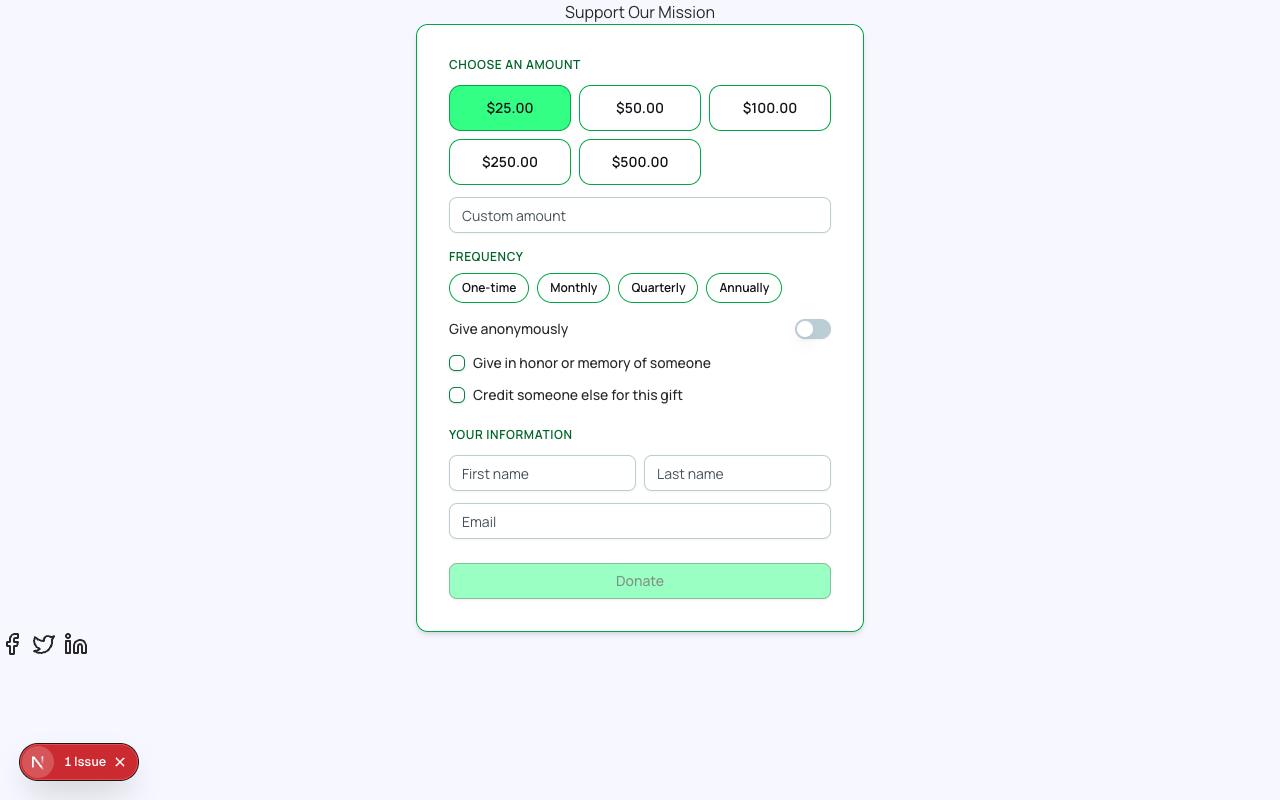
- The page slug is derived from the campaign name and can be customized in the fundraising campaign settings.
- Donation page branding (logo, colors, header image) inherits from the associated event's Page Designer theme.
- Supported gift types: one-time and recurring (weekly, monthly, annually).
- Recurring gifts use Forge's recurrence engine (bt_stripe__Payment_Schedule__c) — not Stripe Subscriptions.
- After a successful gift, the donor is offered a magic link to activate their Donor Portal.
| Forge | SF Object | SF Field |
|---|---|---|
| Donation | bt_fundraising__Donation__c | bt_fundraising__Amount__c, bt_fundraising__Designation__c, bt_fundraising__Recurring__c |
| Fundraising campaign | bt_fundraising__Fundraising_Campaign__c | Name, bt_fundraising__Goal__c, bt_fundraising__Slug__c |
Checkout embed
The checkout embed lets you drop a fully functional event-registration checkout into any external webpage — your organization's website, a partner landing page, or a marketing microsite. The embed is an Angular Elements web component distributed via an ESM loader that respects the events-webapp postMessage contract.
- Open the event in Forge and navigate to the Checkout Preview beta tab.
- Copy the embed code snippet.
- Paste the snippet into your external page's HTML. The component auto-sizes to fit its container.
- Optionally configure the embed's accent color and language via data attributes.
- The embedded checkout uses the same tickets, forms, and payment gateway as the full registration page.
The checkout embed communicates with your event's registration endpoint over a secure CORS-allowed connection. It does not require your website to be on the same domain as Forge.
Sponsor sign-up page
Events with sponsorship opportunities can enable a public sponsor sign-up page where interested organizations submit their details, choose a sponsorship level, and initiate payment. Submissions create a conference360__Sponsor__c record in Salesforce with a Pending status, pending review by your team.
- Open the event and go to the Sponsors tab.
- Click Configure Sponsor Sign-Up Page.
- Select which sponsorship levels to make available publicly, set any required custom questions, and toggle the page on.
- Copy the shareable URL and include it in your sponsorship prospectus.
Public page data
Public pages are accessible to anyone with the URL — no authentication is required. Avoid including attendee lists, financial totals, or any sensitive organizational data on public pages. Forge validates all form submissions server-side before writing to Salesforce.
Custom domains
Organizations on eligible plans can serve public pages from a custom domain (e.g., give.yourorganization.org) via Forge's vanity-domain feature. Custom domains are configured by your Blackthorn account team in the connect360-core licensing service — contact support to request a custom domain setup.