Reference
Ticket and Item Settings Reference
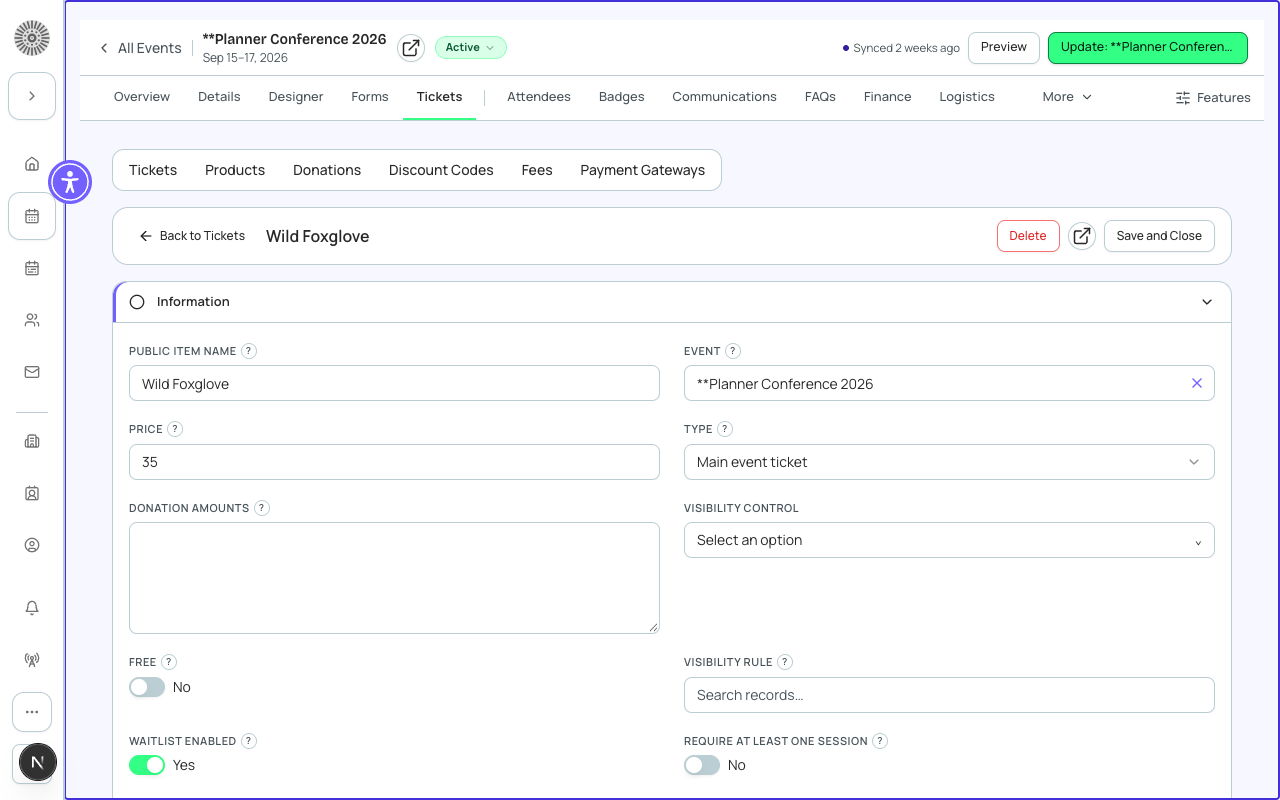
Tickets, donations, and products are all managed as Event Items — stored as `conference360__Event_Item__c` records in Salesforce. This reference covers every field available when you create or edit an item in the Tickets and Items tab.
Item Types
Forge supports three item types on a single event. The Type field determines how the item behaves during checkout and how revenue is categorized in reporting.
| Type | Use case | Donation mode | SF field value |
|---|---|---|---|
| Ticket | Standard event admission — general admission, VIP, early bird, etc. | No | Ticket |
| Donation | Allows registrants to include an optional or fixed charitable contribution at checkout | Yes — maps to bt_fundraising__Donation__c | Donation |
| Product | Add-on merchandise or services — t-shirts, parking passes, meal upgrades, etc. | No | Product |
Core Fields
| Field | What it controls | Notes | SF field |
|---|---|---|---|
| Name | The ticket name shown to registrants on the checkout page and in emails | Keep concise — long names truncate on mobile screens | Name |
| Description | Optional marketing copy shown beneath the ticket name on the registration page | Supports a single line of plain text; not rich-text | conference360__Description__c |
| Type | Ticket, Donation, or Product — determines checkout behavior | Cannot be changed after the first purchase | conference360__Type__c |
| Price | The amount charged at checkout in the event currency | Set to 0 or enable Free to create a free ticket | conference360__Price__c |
| Free | When enabled, bypasses payment collection entirely for this item | Use instead of Price=0 to avoid showing a $0.00 line item in checkout | conference360__Free__c |
| Status | On Sale, Off Sale, or Sold Out — controls whether the item appears at checkout | Items in Off Sale or Sold Out status are hidden from the checkout form | conference360__Status__c |
| Quantity Available | The maximum number of this item that can be sold across all registrations | Leave blank for unlimited; set to a positive integer to enforce a cap | conference360__Quantity__c |
| Min Per Order | Minimum number of this item a single registrant must purchase | Typically 1 for regular tickets; set to 0 to make optional items truly optional | conference360__Min_Per_Order__c |
| Max Per Order | Maximum number of this item a single registrant can purchase in one checkout | Useful for limiting bulk ticket purchases | conference360__Max_Per_Order__c |
| Sort Order | Controls the display order of items on the registration page | Lower numbers appear first; items with equal sort order appear alphabetically | conference360__Sort_Order__c |
Sale Window
| Field | What it controls | Notes | SF field |
|---|---|---|---|
| Sale Start Date | The earliest date/time this item becomes purchasable | Leave blank to make the item available as soon as its Status is On Sale | conference360__Sale_Start__c |
| Sale End Date | The cutoff after which this item can no longer be purchased | Items past their Sale End Date are automatically hidden from checkout | conference360__Sale_End__c |
Early Bird Pricing
To set up early-bird pricing, create two ticket records with the same name prefix (e.g. 'GA — Early Bird' and 'GA — Standard'), set the early bird Sale End Date to your cutoff, and set the standard ticket Sale Start Date to the same moment. Only one will be visible to registrants at a time.
Visibility Rules
Visibility rules let you show or hide a ticket based on the registrant's form answers, their Salesforce record, or other ticket selections. Rules are built in the Visibility tab of the ticket editor and stored as `bt_base__Rule__c` records.
| Rule type | Description | Example |
|---|---|---|
| Form answer | Show/hide based on a specific answer to a registration form question | Show 'Staff Ticket' only if answer to 'Are you staff?' is 'Yes' |
| Ticket selection | Show/hide based on whether another ticket has been selected | Show 'Workshop Add-on' only if a conference ticket is in the cart |
| Contact field | Show/hide based on a field on the linked Salesforce Contact or Lead | Show 'Member Price' only if the Contact's Membership Status is Active |
Session Linking
Tickets can be linked to one or more sessions. When a registrant purchases a linked ticket they are automatically enrolled in those sessions — no separate session selection step is needed. This is useful for workshop passes or day-specific access.
Fees
Event-level and item-level fees can be attached to tickets. Fees are stored as `bt_stripe__Fee__c` records and are additive on top of the ticket price. Common uses: credit card processing surcharges, platform service fees, or tax line items.
| Forge | SF Object | SF Field |
|---|---|---|
| Ticket / Item record | conference360__Event_Item__c | Name, conference360__Price__c, conference360__Type__c, conference360__Free__c, conference360__Status__c |
| Quantity cap | conference360__Event_Item__c | conference360__Quantity__c |
| Order limits | conference360__Event_Item__c | conference360__Min_Per_Order__c, conference360__Max_Per_Order__c |
| Sale window | conference360__Event_Item__c | conference360__Sale_Start__c, conference360__Sale_End__c |
| Visibility rules | bt_base__Rule__c / bt_base__Rule_Condition__c | Links to Event_Item__c via lookup |
| Fees | bt_stripe__Fee__c | Type, Amount/Percentage |
Price changes after sales
Changing a ticket price after purchases have been made does not retroactively adjust existing transactions. Existing invoices retain the original price. Only new registrations will see the updated price.