Global Tour
Events and Groups
The Events list is the central hub for managing all your events. From here you can view, filter, search, create, and organize events into groups. Groups let you cluster related events — a conference series, a regional tour, a season of fundraisers — so attendees and staff can navigate them as a set.
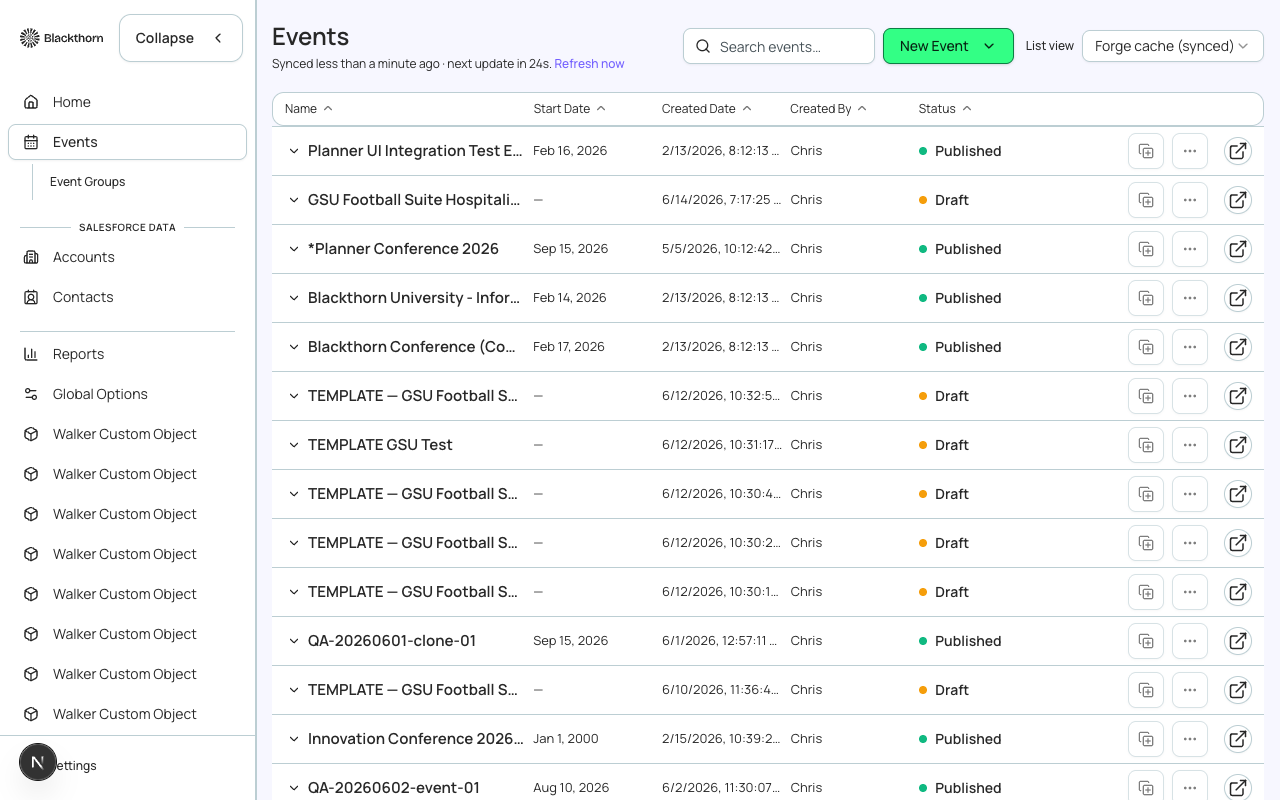
Browsing and Filtering Events
Events are shown in a card or table view. Each card displays the event name, dates, location type, status badge, and live registration count. Use the filter bar to narrow by status, date range, or event group.
- Status filters: Draft, Active, Waitlist, Cancelled, Completed.
- Date range filter: narrow to events starting in a given month or quarter.
- Group filter: show only events belonging to a specific event group.
- Search: full-text search on event name.
- Sort: by start date (default), name, or registration count.
Creating an Event
Click 'New Event' to choose your creation method.
- Magic (AI) — describe your event in plain language and Forge prefills name, date, location, and a draft agenda. Review and adjust before saving.
- Ol' Faithful — step-by-step manual form covering basics (name, dates, location type), registration settings, and initial ticket types.
- Clone — pick an existing event to copy. All tickets, forms, sessions, and page design are duplicated. Attendees and registrations are NOT cloned.
Event Status Lifecycle
| Status | Meaning | Registrations accepted? |
|---|---|---|
| Draft | Not yet published. Invisible to registrants. | No |
| Active | Live and accepting registrations (if registration is open). | Yes |
| Waitlist | Capacity reached; new registrants are waitlisted. | Waitlist only |
| Cancelled | Event has been cancelled. Registration page shows cancellation message. | No |
| Completed | Event has passed. Read-only mode for most fields. | No |
Event Groups
An Event Group is a named container for related events. Groups appear in the public registration flow, letting registrants browse all events in a series from a single landing page. Groups also make bulk operations easier for organizers.
- Create a group from the Events list > Groups tab.
- Add events to a group from the event's Event Info tab or from the group detail page.
- A group can have its own branding (logo, description, header image) served on the group landing page.
- Groups are additive — an event can belong to one group at a time.
Salesforce mapping
Each Forge event corresponds to one conference360__Event__c record in Salesforce. The Status field maps to conference360__Status__c. Event Groups correspond to conference360__Event_Group__c records linked via a lookup on the Event object.
| Forge | SF Object | SF Field |
|---|---|---|
| Event name | conference360__Event__c | Name |
| Start date | conference360__Event__c | conference360__Event_Start_Date__c |
| End date | conference360__Event__c | conference360__Event_End_Date__c |
| Status | conference360__Event__c | conference360__Status__c |
| Location type | conference360__Event__c | conference360__Location_Type__c |
| Capacity | conference360__Event__c | conference360__Maximum_Attendees__c |