Admin
Webinar Accounts (Zoom)
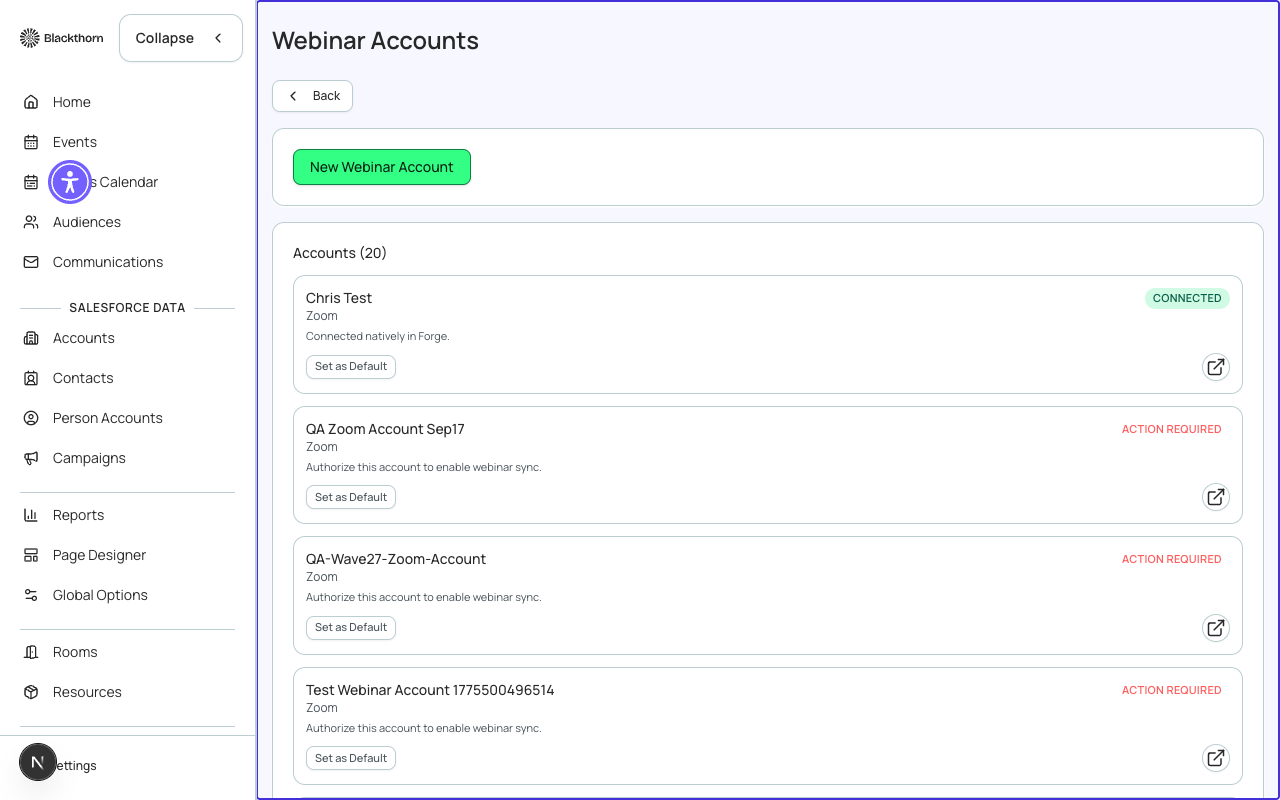
Webinar Accounts connect Forge to your Zoom account so that virtual and hybrid sessions can automatically get a real meeting or webinar attached — no copy-pasting join links between systems. Forge currently supports Zoom (Meetings and Webinars); Microsoft Teams support is planned but not yet available.
How it works
A Webinar Account record stores a sealed OAuth grant for one Zoom account. Once connected and marked Active, the account becomes available to assign to individual sessions. When a session with an assigned webinar account is created or updated, Forge calls the provider's API to create the meeting/webinar and writes the resulting join URL, meeting ID, and password back onto the session automatically.
Adding a Zoom account
- Go to Global → Webinar Accounts (or Admin → Integrations → Webinar Accounts) and click New Account.
- Enter a recognizable name (e.g., "Zoom — Marketing Team") and choose Zoom as the provider.
- Choose whether Forge should disable the host's Personal Meeting ID (PMI) for meetings it creates — recommended, since a shared PMI can leak a link intended for a different event.
- Click Save, then click Connect (native OAuth). You're redirected to Zoom to sign in and approve the Blackthorn Forge app's requested scopes.
- After approving, Zoom redirects back to Forge. The account's status changes to Active once the authorization is confirmed.
Older accounts created before native OAuth was available may instead show "Open in Salesforce to Authorize" — the same authorization happens via a connected-app flow from the Salesforce record. New accounts always use the native Connect button.
Using a webinar account on a session
Open an event, go to Location (or Manage → Location for an existing event), and assign the Webinar Account to a virtual or hybrid session. On save, Forge creates the Zoom meeting and populates the Webinar Meeting URL, Meeting ID, and Password fields — shown to registered attendees only. You can also choose whether Zoom sends its own confirmation/reminder emails ("Send Zoom Emails") or whether Forge's own communications own that messaging ("Do not send Zoom Emails"), and whether the connected Zoom account's default meeting settings apply.
| Forge | SF Object | SF Field |
|---|---|---|
| Webinar account | WebinarAccount (mapped object) | Provider, Status, connected email |
| Session join details | conference360__Session__c | Webinar Meeting URL / ID / Password fields |
Removing a Zoom account
There are two ways to remove the connection, and they have different scopes:
- Uninstall from Zoom (full deauthorization): uninstall or revoke the Blackthorn Forge app from your Zoom App Marketplace / Zoom account settings. Zoom notifies Forge immediately via a signed deauthorization webhook, and Forge deletes the stored OAuth tokens and clears the account's connection status right away — no manual cleanup needed on the Forge side.
- Remove from Forge only: open the Webinar Account record and deactivate or delete it (via its Salesforce record, using the record's SalesforceLinkIcon deep link). This stops Forge from using that account for new sessions, but does not revoke the grant on Zoom's side — do this in addition to, not instead of, uninstalling from Zoom if you want the authorization fully revoked.
What happens to existing sessions
Removing or deauthorizing a webinar account does not delete meeting details already written to past or currently scheduled sessions. It only stops that account from being used for future meeting creation and updates.
Security: all Zoom webhook requests (including the deauthorization callback) are verified against the x-zm-signature header using HMAC-SHA256 and a per-tenant Secret Token before Forge acts on them; unsigned or invalid requests are rejected. OAuth access and refresh tokens are encrypted at rest and are never stored in Salesforce — only connection status fields are written back there. All traffic to and from Zoom runs over TLS.