Event Tour
Communications
The Communications tab inside an event workspace is a scoped version of the global Communications hub — pre-filtered to this event's registrant list and pre-populated with this event's merge fields. Use it for all event-specific messaging: reminders, updates, session schedule releases, and post-event follow-ups.
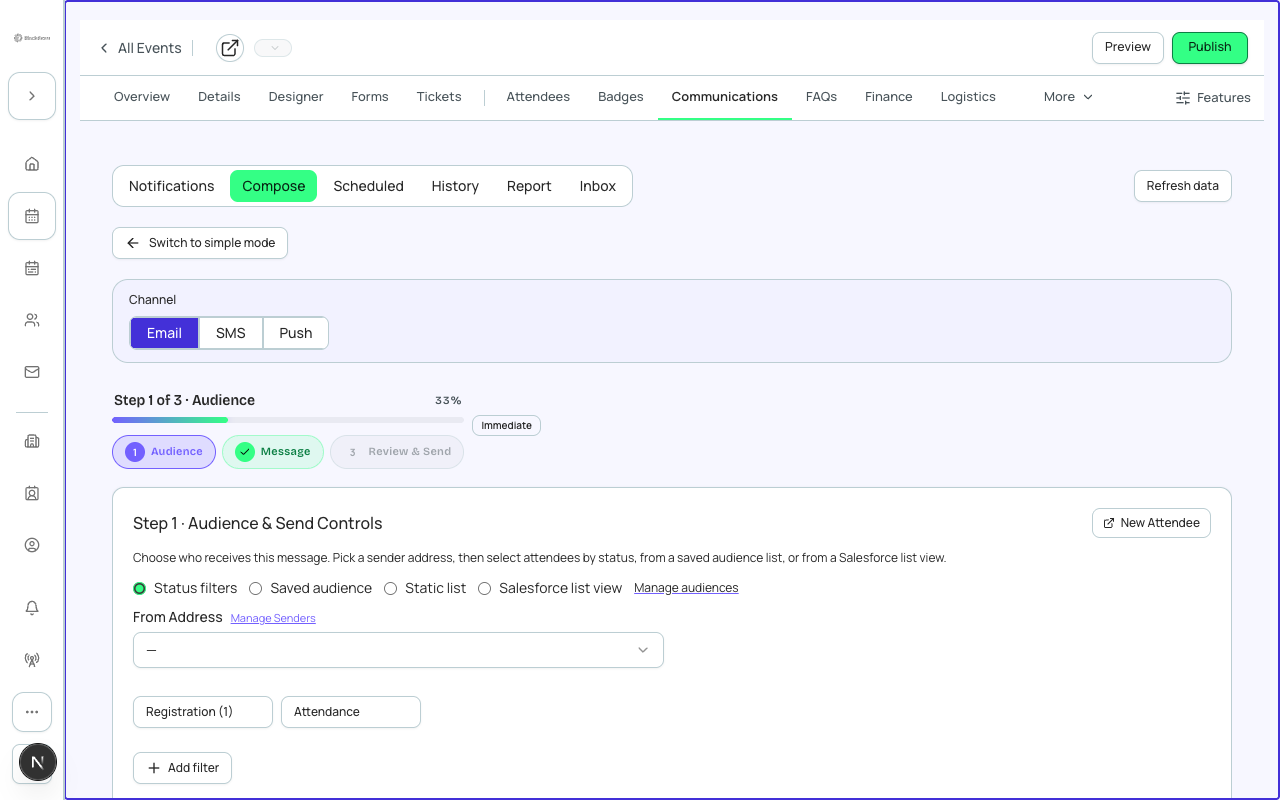
Sending an Event Email
- Click 'New Email' in the event Communications tab.
- Select a template or start from scratch.
- Choose your audience: All Registered, Waitlisted, Attended, Cancelled, or a custom segment filtered by ticket type or form answer.
- Write or edit your subject line and preview text.
- Use merge fields to personalize: {{attendee.firstName}}, {{event.name}}, {{event.startDate}}, {{session.name}}, {{ticketType.name}}.
- Preview on desktop and mobile.
- Schedule for a specific time or send immediately.
- Click Send.
Automated Emails
Automated emails fire based on registration lifecycle triggers — no manual send required. Forge ships built-in automations that you can activate per event.
| Trigger | Default delay | Configurable? |
|---|---|---|
| Registration Confirmed | Immediate | Yes — customize template and from-name |
| Payment Received | Immediate | Yes |
| Waitlist Joined | Immediate | Yes |
| Waitlist Promoted to Registered | Immediate | Yes |
| Event Reminder | 3 days before event | Yes — change delay |
| Post-Event Thank You | 1 day after event | Yes — change delay or disable |
| Survey Invitation | 2 days after event | Yes — only fires if Surveys tab is configured |
Email History
The History sub-tab shows every email sent for this event — automated and manual — with delivery stats (sent, delivered, opened, clicked, bounced, unsubscribed). Click any row to see individual attendee-level delivery status.
Triggered sends are powered by Salesforce Flows
Behind each automated email is a Salesforce Flow that fires on the Attendee record. Your Salesforce admin can extend the Flow with additional logic — for example, adding a task to a sales rep when a VIP registers. See the Salesforce Triggered Sends documentation for details.