Event Tour
Sponsors
The Sponsors tab manages the organizations and individuals sponsoring your event. Forge supports tiered sponsorship levels (Platinum, Gold, Silver, etc.), logo display on the registration page, and a Sponsor Portal where sponsors can submit their own assets.
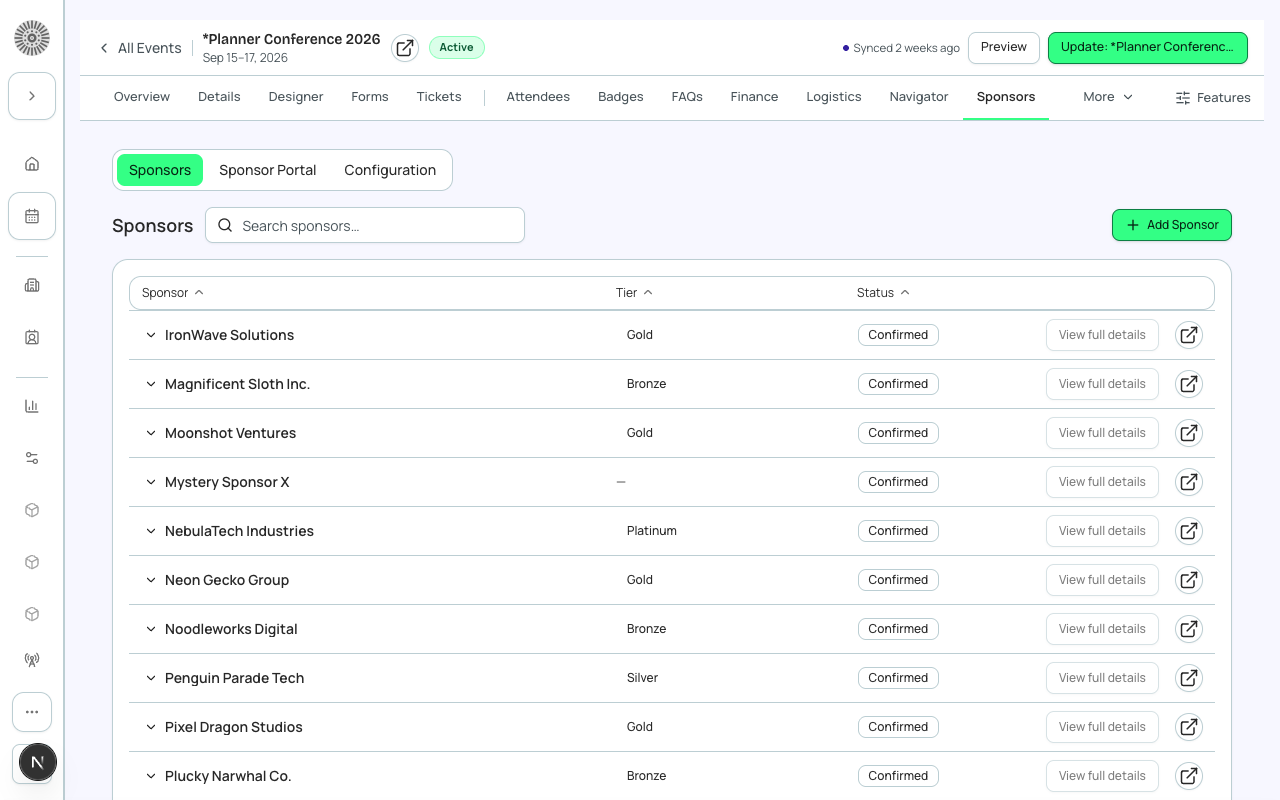
Sponsor Tiers
Tiers let you group sponsors by their contribution level and apply different display treatments. Common tiers: Platinum (largest logo, top placement), Gold, Silver, Bronze, Community Partner. You can create custom tier names.
- Each tier has a configurable display label, logo size, and sort order.
- Sponsors within a tier are sorted alphabetically by default (drag to reorder).
- Tiers appear as separate sections on the public event page.
Adding a Sponsor
- Go to the Sponsors tab and click 'Add Sponsor'.
- Search for an existing Salesforce Account or create a new one inline.
- Select the sponsorship tier.
- Upload the sponsor's logo (PNG or SVG, transparent background recommended).
- Set the confirmation status (Confirmed or Pending).
- Optionally add a description or website URL displayed on the event page.
- Save.
Sponsor Portal (beta)
The Sponsor Portal gives each confirmed sponsor a personalized web portal where they can submit their own logo, company description, and promotional materials. Portal access is granted via a signed magic-link email. Submitted assets are placed into a review queue before going live.
Beta feature
The Sponsor Portal is in beta. Enable it from the /beta settings page.
Displaying Sponsors Publicly
Sponsors with status 'Confirmed' and 'Show on Public Page' enabled appear on the event registration page. The Page Designer has a Sponsors content block — drag it onto your page to choose which tiers appear and how large logos display.
| Forge | SF Object | SF Field |
|---|---|---|
| Sponsor name | conference360__Sponsor__c | Name |
| Sponsorship level / tier | conference360__Sponsor__c | conference360__Level__c |
| Linked account | conference360__Sponsor__c | conference360__Account__c |