Event Tour
Sessions
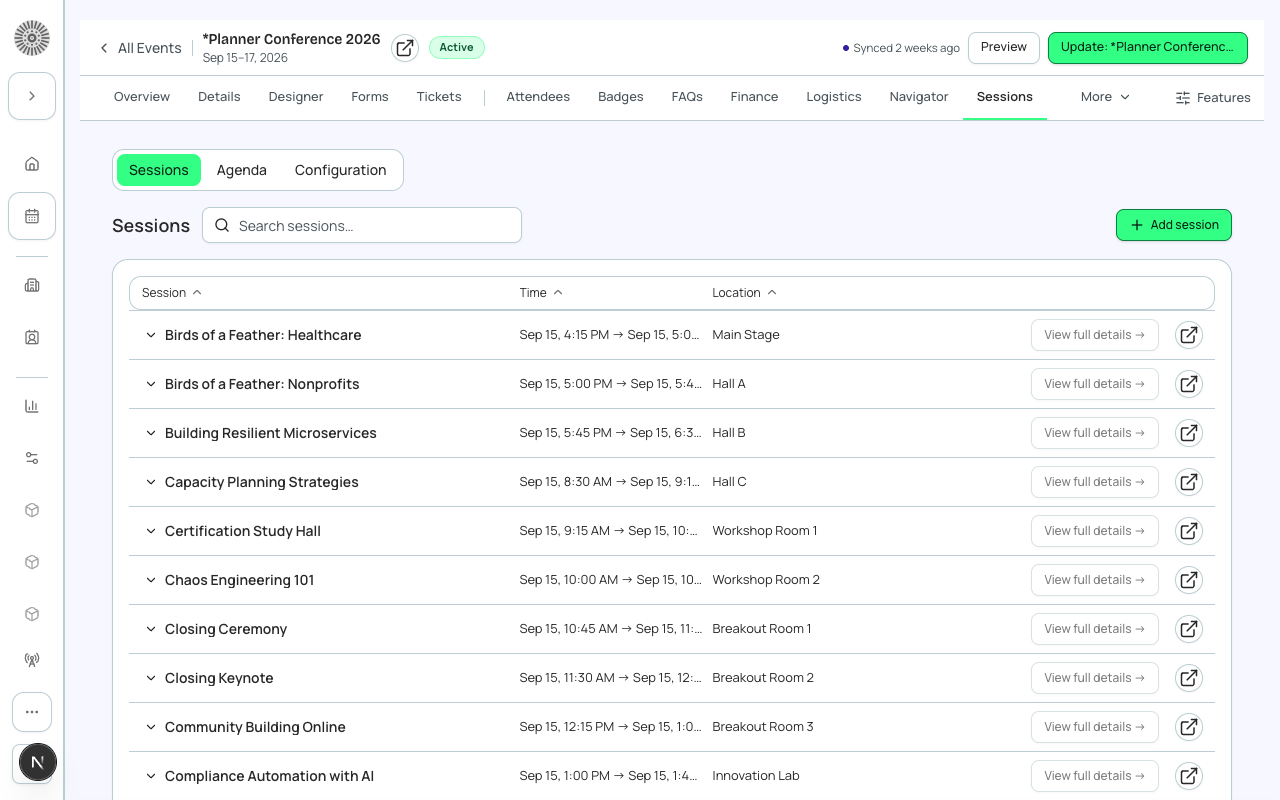
Sessions let you break a multi-track or multi-day event into individual segments — keynotes, workshops, breakout discussions, networking lunches — each with its own schedule, capacity, room assignment, and speaker lineup. Attendees can browse and sign up for sessions during or after registration.
Session Model
In Salesforce, a session is a conference360__Session__c record that has a lookup to its parent conference360__Event__c. Each session has a start time, end time, room assignment, and maximum registrant count. Forge surfaces these as a visual agenda.
Demo org note
In the Planner Conference 2026 demo org, sessions are modeled as separate child event records (a quirk of that org's historical setup). When you create new sessions in your own events, they follow the standard Session__c-under-Event__c model described here.
Creating a Session
- Go to the Sessions tab and click 'New Session'.
- Enter the session name, start time, and end time. Times must fall within the event's start and end dates.
- Optionally assign a track (e.g., 'Engineering', 'Leadership', 'Workshops') — tracks are freeform labels used to group and filter sessions.
- Assign a room or virtual link. If using the Rooms & Resources module, select from the configured rooms.
- Set a maximum registrant count. Leave blank for unlimited.
- Assign speakers (from the event's Speakers list).
- Save.
The Session Agenda View
The Sessions tab shows two views: a list view (sortable table) and an agenda view (visual timeline). Toggle between them using the view switcher. The agenda view is especially useful for scheduling — drag sessions to adjust times, and the conflict detector highlights overlaps.
Session Capacity and Enrollment
When a session has a maximum registrant count, Forge tracks enrollment as attendees select it. Sessions at capacity show a 'Full' badge. If session waitlisting is enabled, attendees can join the waitlist for a full session and are promoted when a spot opens.
Session Conflicts
Forge automatically detects two types of conflicts:
- Room conflicts — the same room is assigned to two sessions that overlap in time.
- Speaker conflicts — the same speaker is assigned to two sessions that overlap in time.
- Both conflict types are flagged with a warning badge on the conflicting sessions.
Linking Sessions to Ticket Types
You can restrict session access by ticket type — for example, a 'VIP Workshop' session is only available to attendees who purchased a VIP or Platinum ticket. Configure this in the session's settings under 'Eligible Tickets'.
Session Reporting
The Reporting tab surfaces session popularity data — enrollment count per session, percentage capacity filled, and a breakdown of which ticket types are enrolled in each session. Use this to identify which sessions need a bigger room or a repeat slot.
| Forge | SF Object | SF Field |
|---|---|---|
| Session name | conference360__Session__c | Name |
| Parent event | conference360__Session__c | conference360__Event__c |
| Start time | conference360__Session__c | conference360__Session_Start__c |
| End time | conference360__Session__c | conference360__Session_End__c |
| Capacity | conference360__Session__c | conference360__Maximum_Registrants__c |
| Room | conference360__Session__c | conference360__Room__c |