Event Tour
Page Designer
Page Designer is Forge's visual drag-and-drop editor for your event's public registration page. It gives you full control over the look, feel, and content of the page that prospective registrants see — without writing any code. Every change you make is previewed live before you publish.
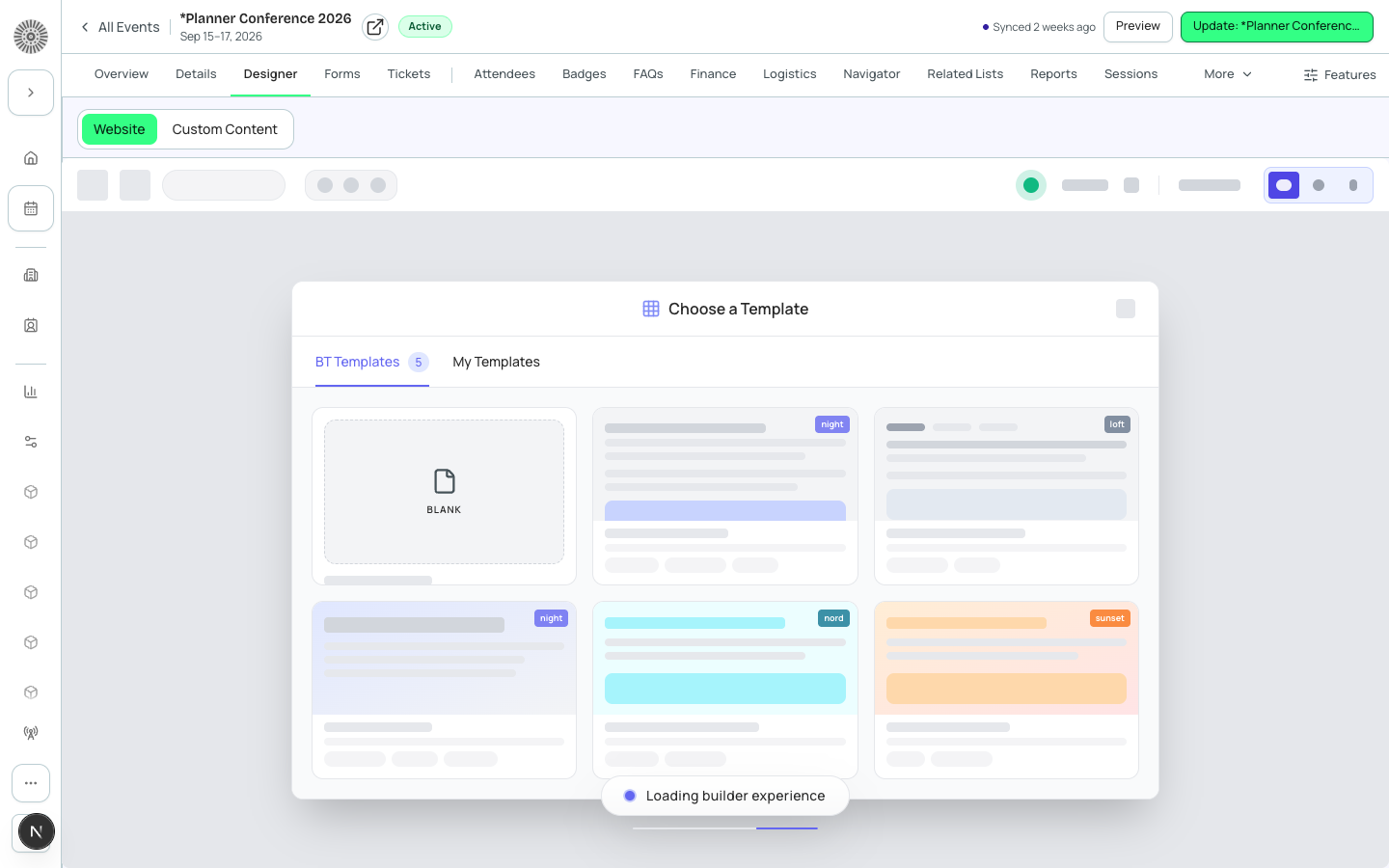
Getting to Page Designer
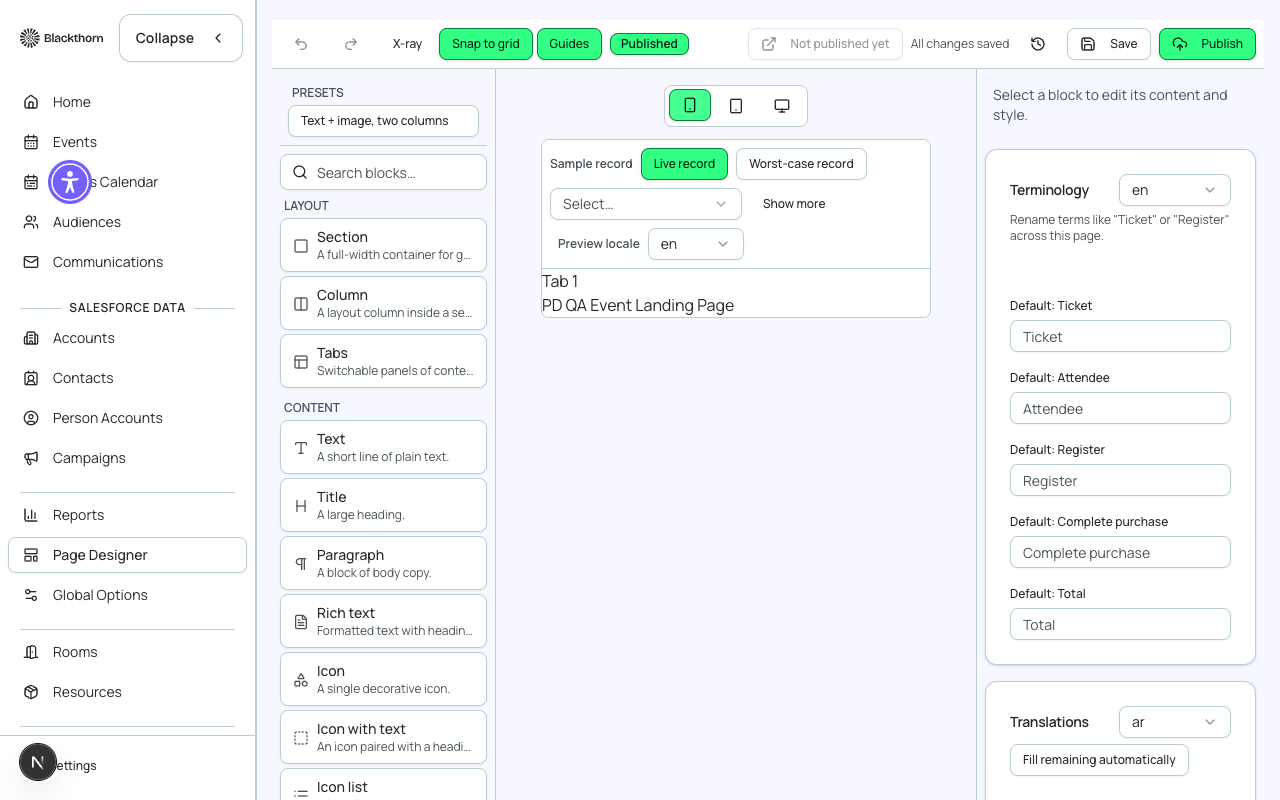
Open any event workspace and click the 'Page Designer' tab. The designer opens with a split view: the canvas (right) shows a live preview of your registration page; the panel (left) shows the content block library and current selection settings.
Content Blocks
The page is built from content blocks. Drag a block from the left panel onto the canvas to add it. Each block has settings you configure in the panel.
| Block Type | What it renders |
|---|---|
| Hero | Full-width banner with event name, dates, and a call-to-action button (Register Now). |
| Text | Rich text section — headings, paragraphs, lists, links, images inline. |
| Tickets | The ticket selection widget. Required for paid/free ticket checkout to appear. |
| Speaker Cards | Grid of speaker headshots, names, titles. Pulls from the event's Speakers list. |
| Sponsor Logos | Tier-organized logo grid. Pulls from the event's Sponsors list. |
| Agenda / Sessions | Tabbed or timeline view of sessions. Pulls from the Sessions tab. |
| Video Embed | YouTube, Vimeo, or Wistia embed with autoplay controls. |
| Image Gallery | Multi-image carousel or mosaic grid. |
| Map | Embedded venue map (from the Location tab address). |
| Countdown Timer | Live countdown to the event start date. |
| Custom HTML | Arbitrary HTML/CSS for advanced customization. Use with caution. |
| Divider | Visual separator between sections. |
| Spacer | Adjustable whitespace block. |
| FAQ | Collapsible accordion of question/answer pairs. |
| Social Share | Buttons to share the event on LinkedIn, Twitter, and Facebook. |
Themes
Themes control the global visual style of the registration page — colors, fonts, button shapes, and background. Choose a preset theme or customize individual tokens.
- Primary color — used for buttons, links, and accent elements.
- Background color — page background.
- Font — headline and body font (select from a curated Google Fonts list).
- Button style — rounded, square, pill.
- Dark mode — toggle a dark-background variant of your theme.
Theme and workspace branding
If you have configured workspace branding in Global Options, new events start with those colors and fonts as defaults. You can override them per-event in Page Designer without affecting the workspace defaults.
Mobile Preview
Click the device toggle in the toolbar to switch the canvas between desktop (1280px), tablet (768px), and mobile (375px) preview sizes. All blocks are responsive by default — stacking columns on small screens and adjusting font sizes. Check the mobile view before publishing.
Publish Flow
Changes in Page Designer are saved automatically as a draft. They do not appear on the live registration page until you publish.
- Make your changes in the designer canvas.
- Review the desktop and mobile previews.
- Click 'Publish' in the top-right corner.
- Confirm the publish dialog. The live registration page updates immediately.
- To revert to the previously published version, click 'History' and restore a prior snapshot.
Publishing goes live immediately
There is no staging environment for the public registration page — Publish replaces the live page immediately. For events with active registrations, schedule publishing updates for low-traffic times.
SEO and Social Sharing
Under Page Settings (gear icon in the designer toolbar) you can set the page title, meta description, and social sharing image (Open Graph image). These improve how your event link appears when shared on LinkedIn, Slack, or via email.
Custom Domain
Event registration pages are served on your workspace's Forge subdomain by default (e.g., yourorg.forge.events/events/event-slug). If you have a custom domain configured in Global Options, pages can also be served on your own domain (e.g., events.yourcompany.com/planner-conference-2026).
Embedding the Registration Form
For embedding registration on your own website, copy the embed code from Page Settings > Embed. The embed code is a lightweight JavaScript snippet that renders the Tickets block inside a div on your site, using the same checkout flow.