Recipes
Cloning and Groups
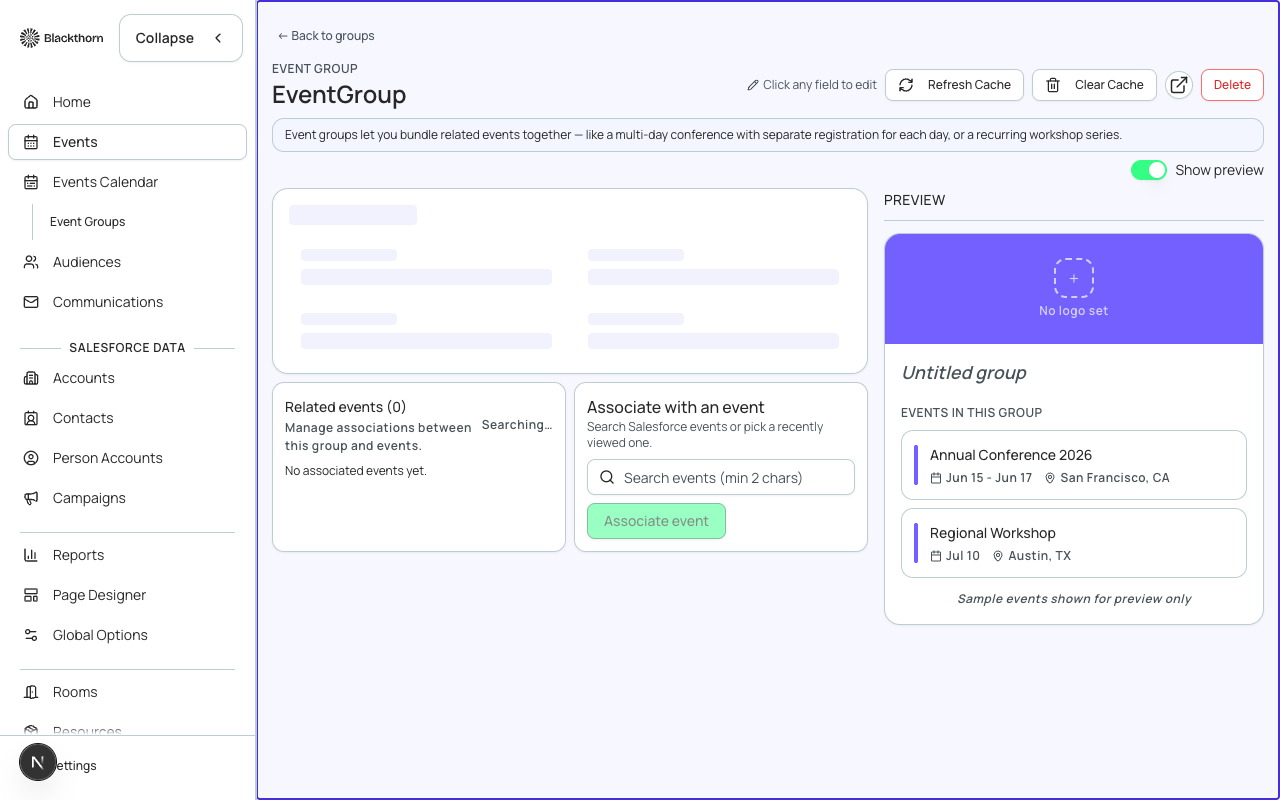
When you run the same event repeatedly or manage a family of related events, cloning and event groups save hours of setup time. Cloning copies an existing event's configuration — tickets, form, page design, sessions — into a new event. Event groups let you link multiple events for unified reporting and attendee discovery.
Before you start
- Identify the source event you want to clone. It can be in any Status (Active, Closed, Draft).
- Know which elements you want to include in the clone: tickets, form questions, page design, sessions, speakers, sponsors.
- If you plan to group events, decide on a group name — the group will appear as a parent record in Salesforce.
Steps — Cloning an Event
- Go to **Events** in the sidebar and find the event you want to clone. Click the **⋯** menu on the event card and select **Clone**, or open the event workspace and choose **Clone** from the event action menu.
- The Clone wizard opens. Enter a new name for the cloned event and update the start and end dates.
- Select which elements to copy: Tickets & Items (checked by default), Form and questions, Page Designer settings, Sessions, Speakers, Sponsors. Uncheck anything that should not carry forward.
- Click **Create Clone**. Forge creates a new `conference360__Event__c` in Salesforce with all selected elements duplicated. The clone starts in Draft status so you can review before activating.
- Open the cloned event and review each section. Update anything that differs from the original: venue address, speaker lineup, ticket prices, or form questions.
- Set the clone's Status to *Active* when ready to open registration.
Steps — Creating an Event Group
- Create or open an event. On the **Event Info** tab, find the **Event Group** field.
- Either select an existing group from the lookup or create a new group name. Forge creates the `conference360__Event_Group__c` record in Salesforce if it does not exist.
- Repeat for each event in the family — assign them all to the same Event Group.
- To view all events in a group, use the **Events** list view and filter by Event Group, or open the Event Group record directly in Salesforce to see the full list.
What cloning does not copy
Cloning does not carry over attendee registrations, transaction history, actual check-in data, or communications send history. Only the structural configuration (tickets, form, design) is duplicated. Discount codes are also not cloned — create new ones on the cloned event if needed.
What this creates in Salesforce
Salesforce Field Mapping
| Forge | SF Object | SF Field |
|---|---|---|
| Cloned event | conference360__Event__c | Name / conference360__Status__c = Draft |
| Cloned tickets | conference360__Event_Item__c | linked to new event |
| Cloned form | conference360__Form__c | linked to new event |
| Cloned sessions | conference360__Session__c | linked to new event |
| Event group | conference360__Event__c | conference360__Event_Group__c |
Verify
- The cloned event appears in the Events list with the new name and Status = Draft.
- All selected elements (tickets, form, page design) are present in the clone.
- The clone's start and end dates are the new dates you specified, not the original's dates.
- No attendee records are carried over from the source event.
- Events in the same group all show the same `conference360__Event_Group__c` value in Salesforce.
- A Salesforce report filtering on the Event Group returns all events in the series.