Recipes
Hybrid Event
A hybrid event runs simultaneously in person and online. Forge lets you set Location Type to Hybrid, capture both the venue address and a virtual streaming URL, and sell separate ticket types for in-person and virtual attendees — each with their own pricing and capacity.
Before you start
- Have both the physical venue address and the virtual streaming URL ready.
- Decide how you will differentiate in-person vs. virtual registrants. The cleanest approach is separate ticket items with different names (e.g., 'In-Person Pass' and 'Virtual Pass').
- Confirm whether virtual-only attendees should see the venue address on the registration page or just the streaming details.
Steps
- Click **Events** → **+ New Event** → **Ol' Faithful**. Set **Location Type** to *Hybrid*. Click **Create Event**.
- On the **Event Info** tab, fill in the venue name and address under the venue section. Then paste the virtual event/streaming URL into the **Virtual Event URL** field.
- Set **Maximum Attendees** to the in-person venue capacity. Virtual attendees do not consume this capacity count.
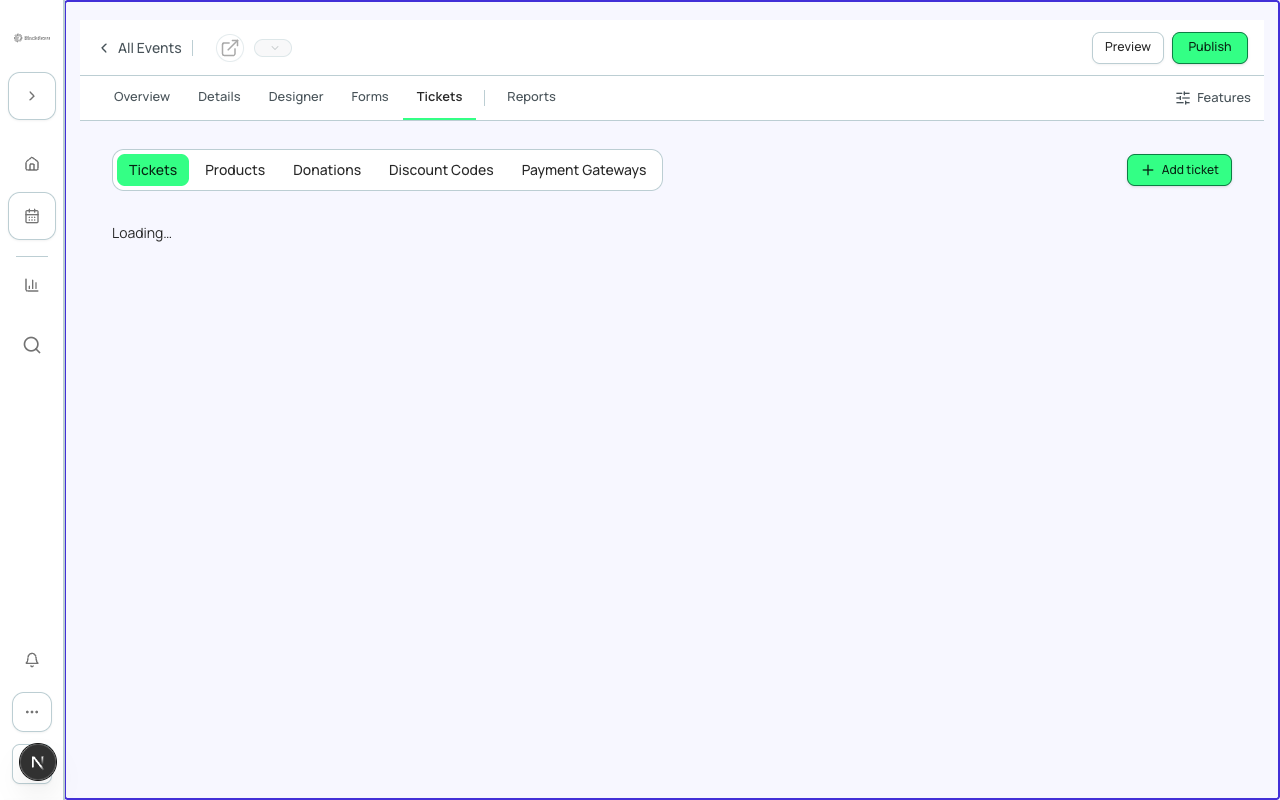
- Open **Tickets & Items**. Create an **In-Person Pass** ticket with the in-person price. Set a **Quantity** limit if you want to cap in-person attendance at the ticket level rather than only the event level.
- Create a second ticket called **Virtual Pass** with the virtual attendee price (which can be $0 for free virtual access). Set its **Quantity** if needed.
- Go to **Page Designer** and update the event description to explain both formats. Consider using separate content sections for 'Attending In Person' and 'Attending Virtually'.
- In **Communications**, review the confirmation email template. You may want to send different emails to in-person vs. virtual attendees — use the Attendee Status or ticket-type conditions in the email template logic.
- Set Status to *Active* and share the registration link.
Separating attendee types after registration
Forge marks every registrant against the same `conference360__Event__c` record. To distinguish in-person from virtual attendees in Salesforce reports, filter by the `conference360__Event_Item__c` they purchased — In-Person Pass vs. Virtual Pass.
What this creates in Salesforce
Salesforce Field Mapping
| Forge | SF Object | SF Field |
|---|---|---|
| Location Type = Hybrid | conference360__Event__c | conference360__Location_Type__c |
| Virtual Event URL | conference360__Event__c | conference360__Virtual_Event_URL__c |
| Max Attendees (in-person cap) | conference360__Event__c | conference360__Maximum_Attendees__c |
| In-Person Pass ticket | conference360__Event_Item__c | Name / conference360__Price__c / conference360__Quantity__c |
| Virtual Pass ticket | conference360__Event_Item__c | Name / conference360__Price__c / conference360__Free__c |
Verify
- The registration page displays both a venue address and a note about the virtual option.
- Both ticket types appear on the registration form with distinct names and prices.
- Registering for the In-Person Pass counts toward the Maximum Attendees limit; registering for the Virtual Pass does not.
- The Salesforce event record shows Location Type = Hybrid.
- Attendee records in Salesforce show the specific ticket item they purchased, allowing segmentation by format.