Recipes
Free Event
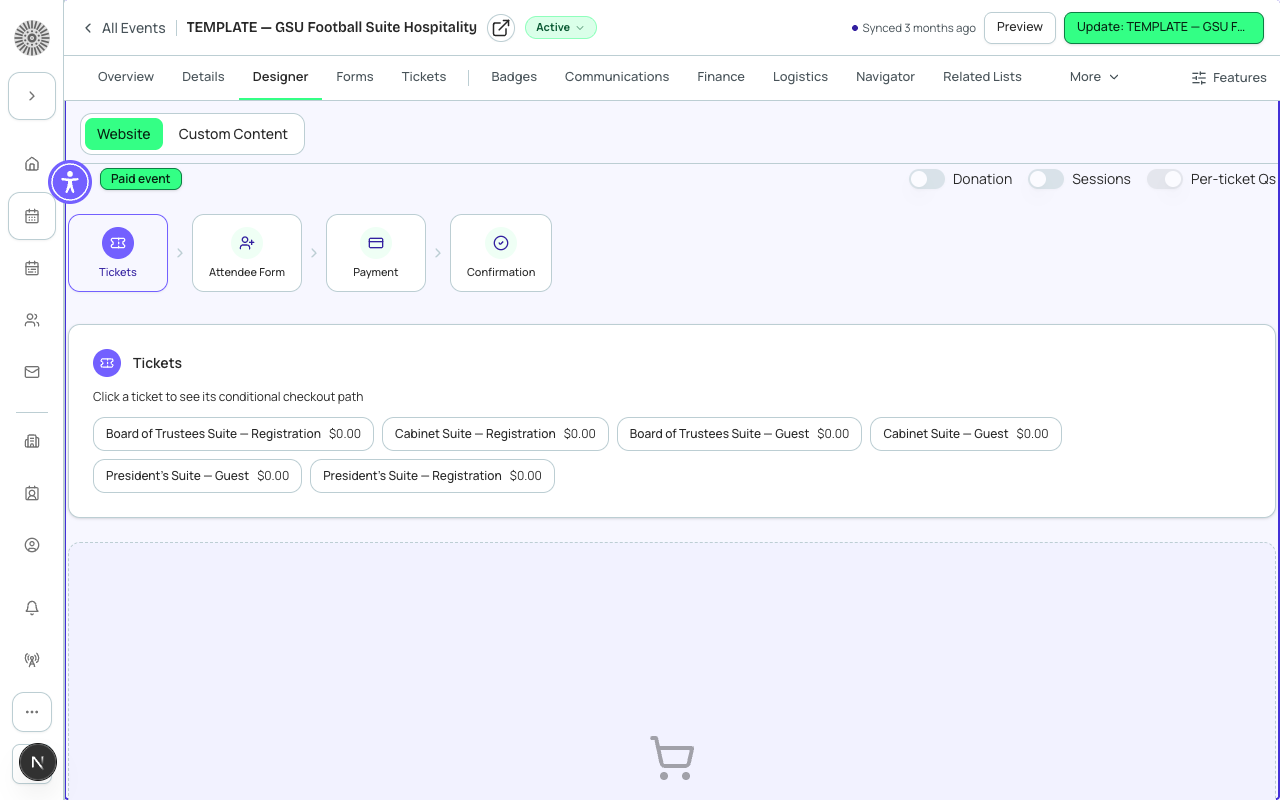
Free events let anyone register without entering payment details. Forge skips the payment step entirely when all tickets are marked free, resulting in a lighter registration experience for attendees.
Before you start
- No payment gateway is needed for a fully free event.
- Decide if you want to collect any registration information beyond the default name and email — if so, prepare your custom form questions.
- Set a max attendees limit if capacity matters, even for free events.
Steps
- Create a new event (any location type) via **Events** → **+ New Event**.
- Open the **Tickets & Items** tab. Click **+ New Item** and set **Type** to *Ticket*.
- Set **Price** to *0* or toggle the **Free** checkbox to true. Both have the same effect: the attendee will not see a payment form.
- Give the ticket a clear name such as 'Free Admission' or 'Community Pass'. Add a **Quantity** if you want to limit the number of free registrations.
- Optionally add a **Form** under the **Forms** tab to collect additional information (dietary preferences, T-shirt size, etc.) from registrants.
- Set **Maximum Attendees** on Event Info if the venue or activity has a headcount limit.
- Set Status to *Active* and share the registration link. Attendees who register will be created immediately with Status = Registered — there is no pending payment step.
Mixing free and paid tickets
You can have some free tickets and some paid tickets on the same event. Forge only skips the payment step if the attendee's total is $0 (i.e., they selected only free items and no paid add-ons). If they pick a paid ticket, the payment flow appears normally.
What this creates in Salesforce
Salesforce Field Mapping
| Forge | SF Object | SF Field |
|---|---|---|
| Free ticket flag | conference360__Event_Item__c | conference360__Free__c |
| Price = 0 | conference360__Event_Item__c | conference360__Price__c |
| Attendee status | conference360__Attendee__c | conference360__Status__c |
| Ticket quantity limit | conference360__Event_Item__c | conference360__Quantity__c |
Verify
- The registration page shows no credit card or payment fields.
- Submitting the registration form creates an attendee immediately with Status = Registered (not Pending Payment).
- No `bt_stripe__Transaction__c` or `bt_stripe__Sales_Document__c` record is created in Salesforce — only the `conference360__Attendee__c`.
- The confirmation email is sent immediately after registration.