Recipes
Fundraising Event (Beta)
BetaBeta feature
Fundraising features are in beta and must be enabled for your org. Navigate to the **Beta** page (`/beta`) in Forge and toggle on Fundraising (Donations) to access this feature. Beta features may change before general availability.
A fundraising event combines standard event registration with a donation component — letting attendees make a gift at the time of registration, alongside or instead of purchasing a ticket. Forge uses the `bt_fundraising__` namespace for donation records, keeping them separate from payment transactions.
Before you start
- Fundraising (beta) must be enabled on the Beta page.
- Your org must have the Blackthorn Fundraising managed package installed (`bt_fundraising__` namespace).
- A Payment Gateway must be configured for processing donations.
- Have a donation designation ready (the fund or program the donation supports) — this maps to a `bt_fundraising__Designation__c` record in Salesforce.
Steps
- Create your event and open the **Tickets & Items** tab.
- Click **+ New Item** and set **Type** to *Donation*. Name it clearly (e.g., *Donate to the Scholarship Fund*). Set a suggested **Price** (attendees can override this amount at checkout). Click **Save**.
- Optionally, create standard Ticket items alongside the Donation item. Attendees can purchase a ticket and make a donation in the same checkout flow.
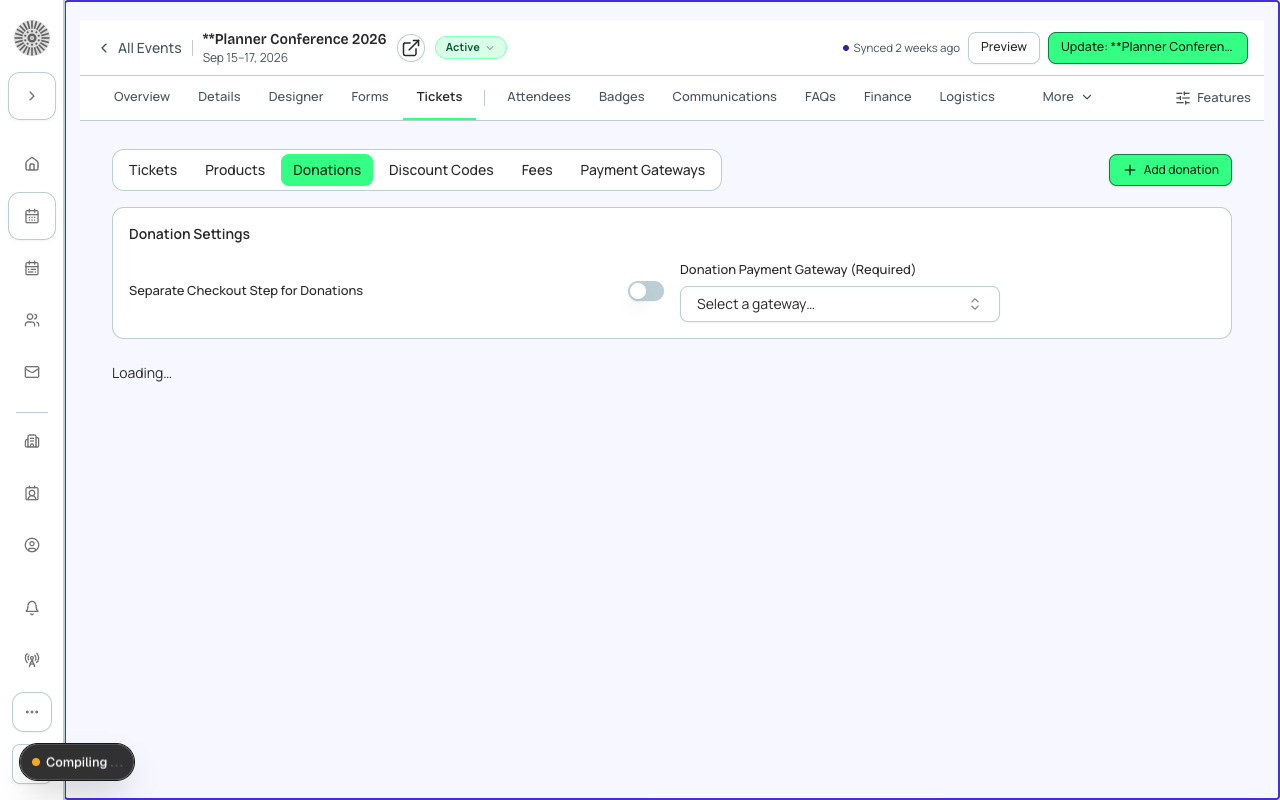
- Go to the **Donations** beta tab (visible after enabling Fundraising on the Beta page). Link the donation item to a `bt_fundraising__Designation__c` in Salesforce to ensure the gift is allocated to the correct fund.
- On the **Page Designer** tab, ensure the donation prompt is enabled in the checkout section. You can add a fundraising appeal paragraph in the event description explaining what the donation supports.
- Set Status to *Active* and share the registration link. Attendees will see the donation option at checkout.
Donations vs. ticket purchases
Donations made through this flow are recorded as `bt_fundraising__Donation__c` records in Salesforce — separate from the `bt_stripe__Transaction__c` that covers the ticket purchase. This separation supports proper gift accounting, gift aid processing, and donor reporting.
What this creates in Salesforce
| Forge | SF Object | SF Field |
|---|---|---|
| Donation item on event | conference360__Event_Item__c | conference360__Type__c = Donation / conference360__Price__c |
| Donation record | bt_fundraising__Donation__c | amount, designation, recurring |
| Designation (fund) | bt_fundraising__Designation__c | Name |
| Ticket purchase transaction | bt_stripe__Transaction__c | amount, status |
| Attendee | conference360__Attendee__c | conference360__Status__c |
Donor PII is protected
Donor names, email addresses, and gift details are stored in Salesforce objects (`bt_fundraising__Donation__c` linked to a Contact). Forge never persists this information in its own database. Always handle donor data in compliance with your organization's data privacy policy.
Verify
- The Fundraising beta is toggled on at `/beta`.
- A Donation item appears in Tickets & Items with Type = Donation.
- The donation amount field is editable by the attendee at checkout (they can increase or decrease the suggested amount).
- After a test registration with a donation, a `bt_fundraising__Donation__c` record exists in Salesforce linked to the correct Designation.
- A separate `bt_stripe__Transaction__c` exists for the ticket portion (if a paid ticket was also purchased).
- The attendee receives a confirmation email that includes both the ticket confirmation and the donation receipt.