Recipes
Multi-Session Conference
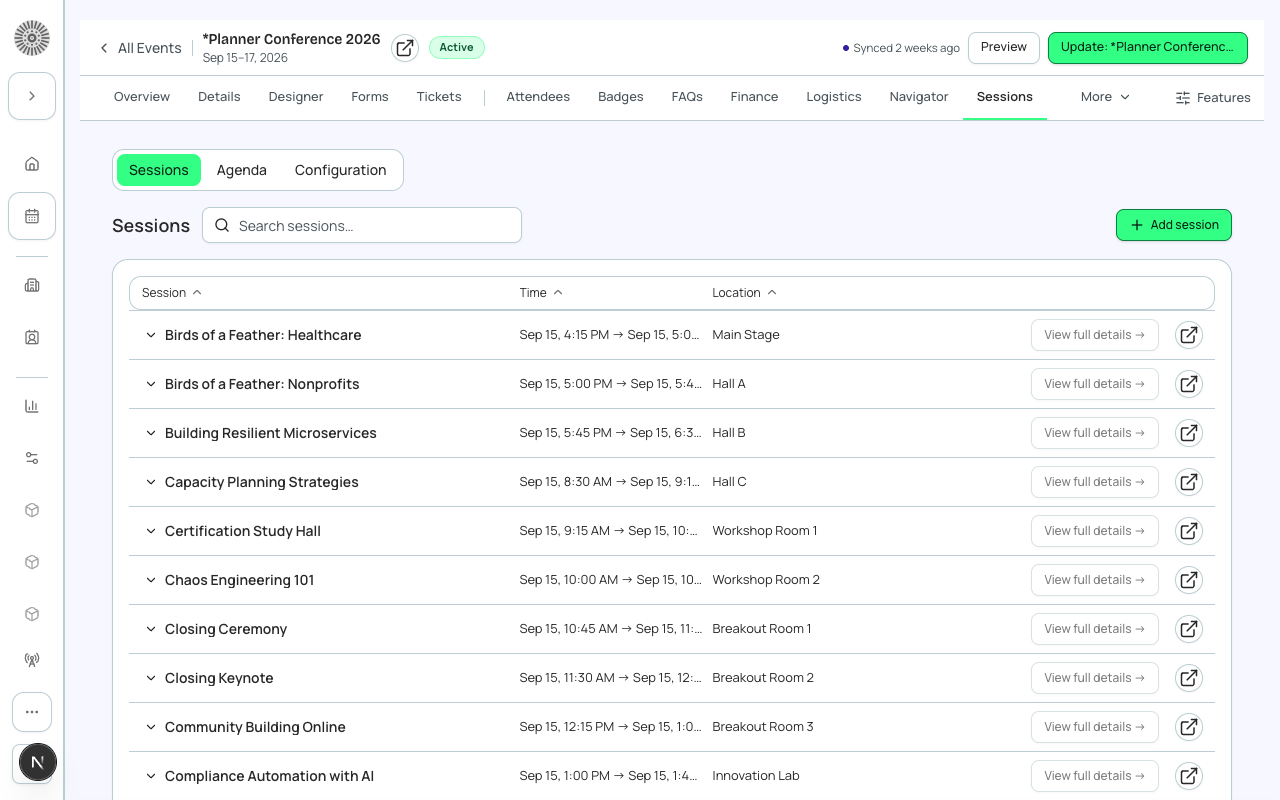
A multi-session conference lets attendees choose which sessions (breakouts, workshops, keynotes) to attend within a broader event. Forge models sessions as `conference360__Session__c` records that belong to the parent event, each with its own capacity, room, start time, and optional separate ticket linkage.
Before you start
- Have your agenda drafted: session titles, start/end times, room or track assignments, and per-session capacity.
- Decide if sessions are included with any ticket (open sessions) or restricted to specific ticket tiers (linked sessions). Linking sessions to tickets is the more advanced configuration.
- If you are assigning sessions to speakers, have your speaker records created first (Speakers section in the left sidebar or the Speakers tab on the event).
- Note: The *Planner Conference 2026* demo org models sessions as separate Event records for internal testing reasons. The standard and recommended model is Sessions (`conference360__Session__c`) as children of a single Event — that is what this recipe documents.
Steps
- Create your event (any location type) and navigate to the **Sessions** tab in the event workspace.
- Click **+ New Session**. Enter the **Session Name**, **Start Time**, and **End Time**. Assign a **Room** if relevant and set **Maximum Registrants** for the session capacity (independent of the event-level Maximum Attendees).
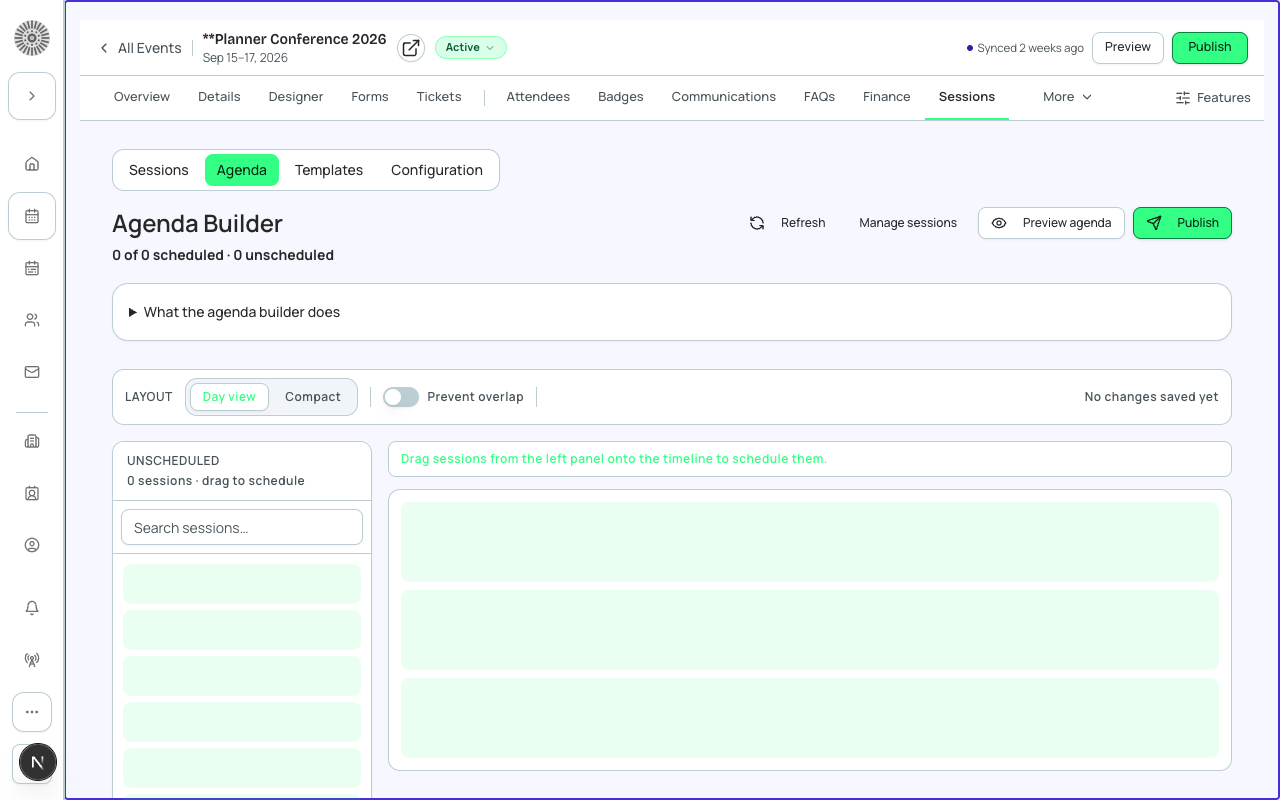
- Repeat for each session in your agenda. Group sessions by track or time slot — Forge displays sessions in chronological order on the agenda view.
- To assign a speaker to a session, open the session detail and use the **Speakers** related list to link one or more `conference360__Speaker__c` records.
- To restrict a session to a specific ticket tier, open the session and use the **Link Ticket** option. Only attendees who purchased the linked ticket can register for that session. Leave unlinked for sessions open to all ticket holders.
- On the **Page Designer** tab, verify the agenda block is enabled so the session schedule appears on the public registration page.
- Publish the event. On the registration page, attendees will see the full session agenda and can add sessions to their personal schedule.
Session waitlisting
When a session's Maximum Registrants count is reached, Forge automatically waitlists additional session registrations — independently of the event-level waitlist. An attendee can be confirmed at the event level but waitlisted for a specific session.
What this creates in Salesforce
Salesforce Field Mapping
| Forge | SF Object | SF Field |
|---|---|---|
| Session | conference360__Session__c | Name |
| Parent event link | conference360__Session__c | conference360__Event__c |
| Session start / end | conference360__Session__c | conference360__Session_Start__c / conference360__Session_End__c |
| Room assignment | conference360__Session__c | conference360__Room__c |
| Session capacity | conference360__Session__c | conference360__Maximum_Registrants__c |
| Speaker on session | conference360__Speaker__c | linked via session speaker junction |
Verify
- All sessions appear in the Sessions tab with correct times, rooms, and capacities.
- The public agenda view on the registration page shows the full session schedule.
- Registering for a session past its Maximum Registrants limit results in a waitlisted session reservation.
- Speakers are displayed on session cards if assigned.
- Salesforce shows each `conference360__Session__c` linked to the parent `conference360__Event__c`.