Beta & Experimental Features
Portals (Beta)
In DevelopmentManage on the Beta Features pagePortals give speakers and sponsors a self-service web experience where they can manage their own profiles, session details, deliverables, and contracts — reducing back-and-forth with your event team.
Beta feature — PORTALS_ENABLED flag required
Speaker Portal and Sponsor Portal are separate beta features, each toggled independently on /beta. They are also gated by the PORTALS_ENABLED server environment flag. Both features are in active development; the standalone portal apps (speaker and sponsor) will replace the current Forge-route previews before general availability.
What it does
Speaker Portal
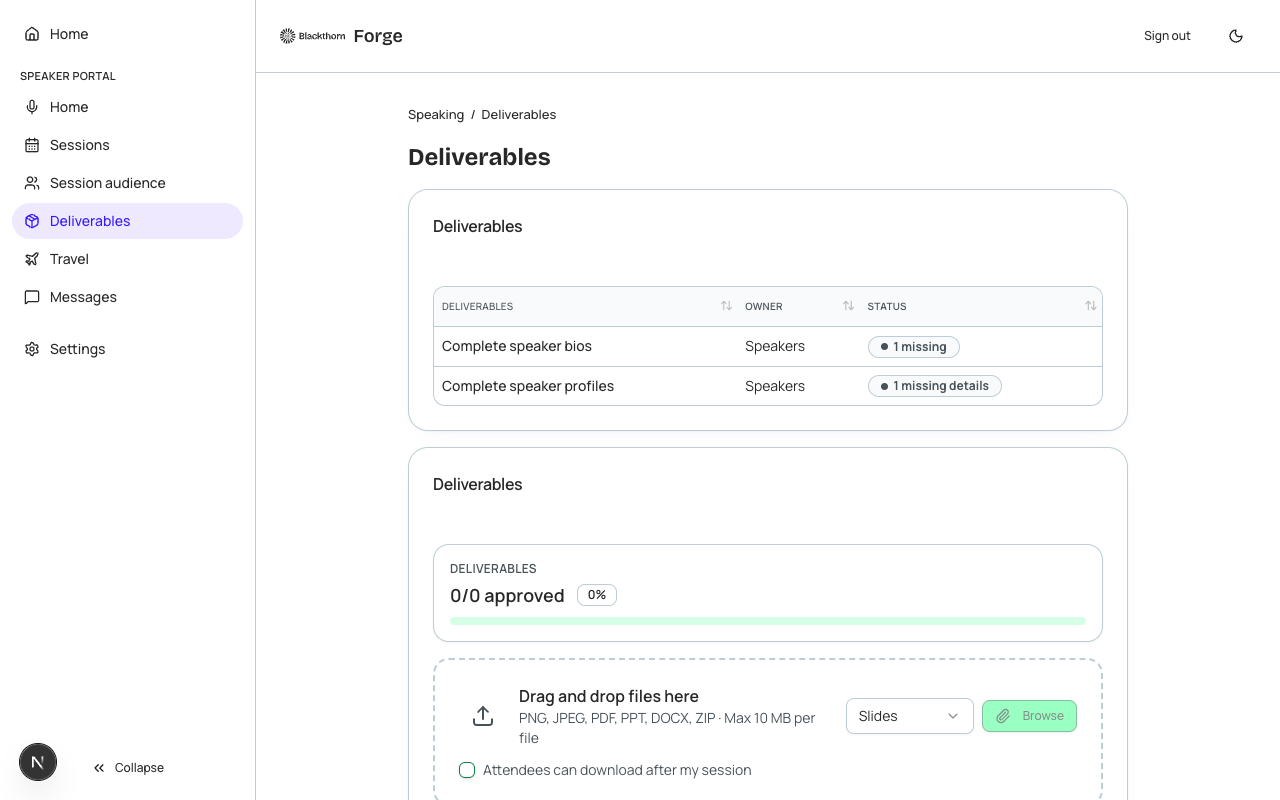
The Speaker Portal is a self-service website where accepted speakers can log in (via a secure magic link sent by Forge), view their session assignments, update their bio and headshot, submit presentation files, and complete any event-specific deliverables — without needing access to Salesforce or your internal Forge workspace.
- Magic-link authentication — no password required for speakers
- Profile editing: bio, headshot, social links, company, title
- Session overview: assigned sessions, time slots, room assignments
- File upload: presentation slides, speaker photo, additional assets
- Deliverable checklist configured by the event team
- Session abstract editing (if permitted by event settings)
- Speaker acceptance/decline for session invitations
Sponsor Portal
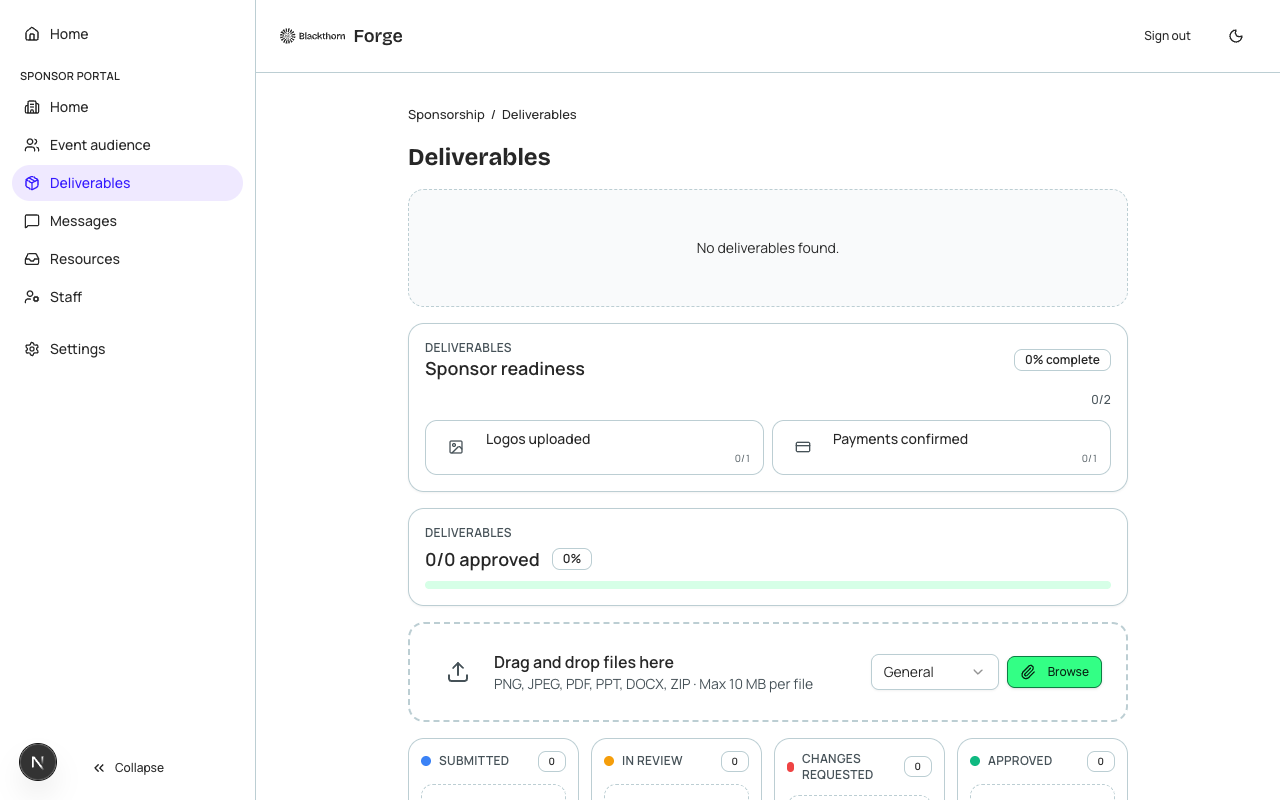
The Sponsor Portal is a self-service website where confirmed sponsors can log in, manage their sponsorship profile, upload logo and brand assets, review their benefits and deliverable checklist, and sign off on contractual items — reducing sponsor management overhead for your team.
- Magic-link authentication for sponsor contacts
- Brand asset upload: logo, banner images, brand guidelines
- Sponsorship benefits display: what is included at their tier level
- Deliverable checklist with completion tracking
- Contact management: sponsor point-of-contact details
- Contract review and digital sign-off (when enabled)
- Booth assignment and logistics information (when Tables & Seating is enabled)
How to enable
- Go to /beta and toggle Speaker Portal on (for the speaker portal) and/or Sponsor Portal on (for the sponsor portal). These are independent toggles.
- Ensure your Forge deployment has PORTALS_ENABLED set to true in the server environment. Contact your administrator if you are unsure.
- Open your event in Forge. A Portal Settings section will appear in the event Settings tab.
- Configure portal access: choose which speakers/sponsors receive magic-link invitations, and customize the deliverable checklist.
- Click Send Invitations to dispatch magic-link emails to your speakers or sponsors.
- Recipients click the link in their email and land on the portal without needing a password.
- Monitor completion from the Forge event workspace: the Speakers and Sponsors tabs now show portal deliverable completion status.
Authentication and security
Portal sessions use signed magic links. Each link is valid for 72 hours and is single-use. After first use, a session cookie is issued that expires after 7 days of inactivity. Portal sessions are completely separate from Forge staff sessions — a speaker or sponsor cannot access the Forge management workspace.
Magic link security
Magic links are sent to the email address stored in the conference360__Speaker__c or conference360__Sponsor__c Salesforce record. Verify contact email addresses in Salesforce before sending invitations. A compromised email account could grant portal access — treat portal invitations like any sensitive access credential.
Salesforce data model
| Forge | SF Object | SF Field |
|---|---|---|
| Speaker profile | conference360__Speaker__c | Name, conference360__Bio__c, conference360__Title__c, conference360__Company__c |
| Speaker session assignment | conference360__Session__c | conference360__Speaker__c lookup, session time, room |
| Sponsor record | conference360__Sponsor__c | Name, conference360__Level__c, conference360__Account__c |
| Portal session (auth) | portal_sessions (Forge Postgres) | Signed magic link token, expiry, Salesforce record Id — no PII stored in Postgres |
Current limitations
- Speaker and Sponsor portals currently run as Forge Next.js routes (under the Forge domain). Standalone subdomain apps are planned before GA.
- File uploads are stored in Salesforce Files linked to the Speaker/Sponsor record — Forge is a pass-through and does not store files in Postgres.
- The deliverable checklist is configured per-event and is not yet templatable across events.
- Sponsor contract sign-off is in preview — legal validity depends on your jurisdiction and terms.
- Portal email invitations use Forge's transactional email system. Custom sender domains require SendGrid configuration.
- Portals require PORTALS_ENABLED=true on the server — this is not a UI-only toggle.
- The staging portal deployment (separate ECS/ALB/Route53 configuration) is in progress. Self-service staging portal testing may not be available for all tenants yet.